

LIGHTER MEDIA, CONTROLLED PROCESSING
Image Optimization
WebPix creates WebP and AVIF copies of your WordPress images, lets you choose quality presets or custom settings for each format, and can prepare missing variations on demand when a page requests them. Optional resizing and JPEG compression of originals, image-loading controls and PDF or WebM copies extend the same workflow.
Modern Formats
Give your existing images a lighter alternative.
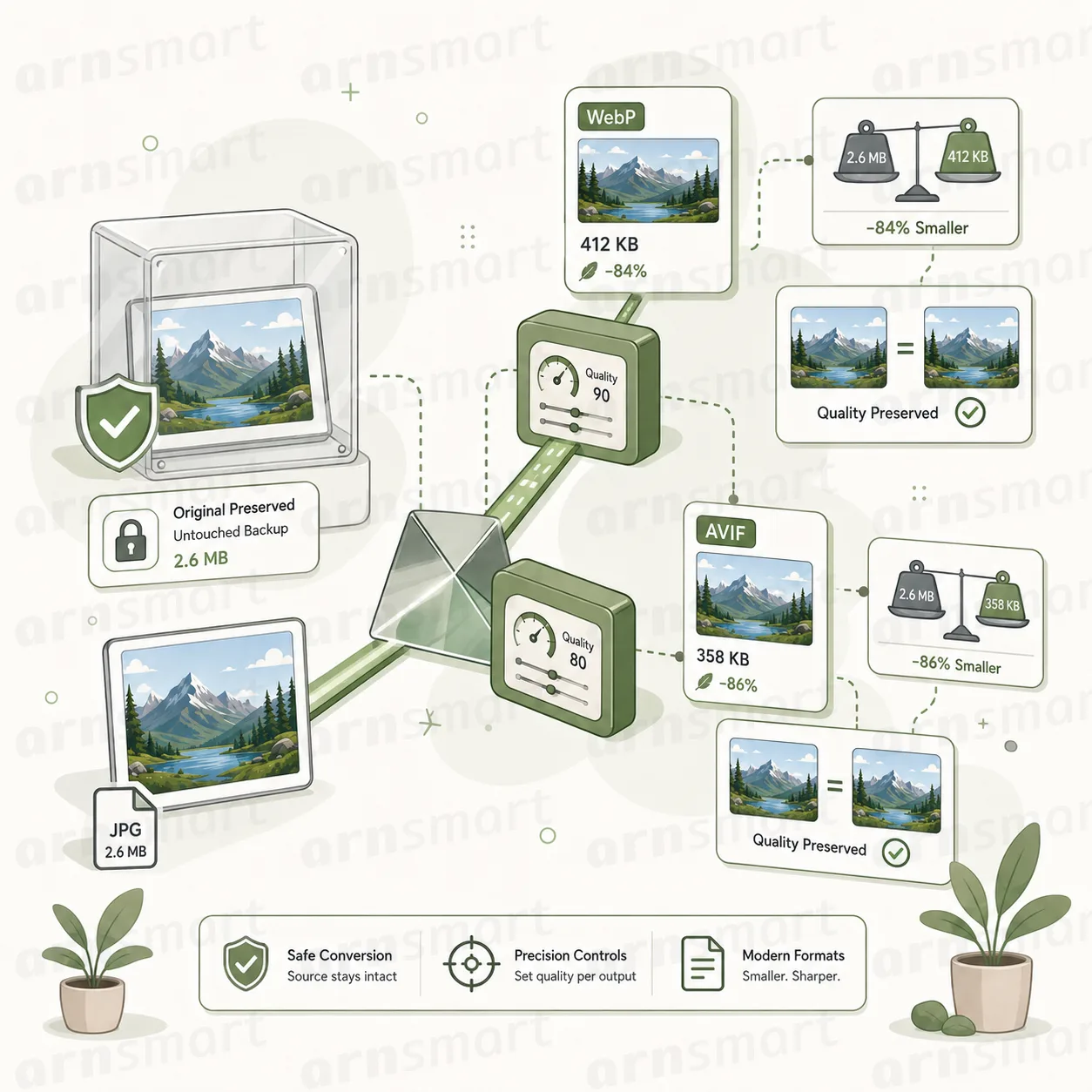
WebPix creates WebP and AVIF copies from your WordPress images. Convert existing attachments and generated sizes, process a selected image, or let new uploads enter the background workflow.
Modern copies are stored separately from the source image. Standard conversion does not replace the original, so delivery can continue using it when an appropriate copy is unavailable.
Choose your output formats. Generate WebP, AVIF or both according to your settings and available server encoders.
Cover the sizes your pages use. Process the source and eligible generated sizes instead of treating an attachment as one file.
Keep output visible. Review conversion state and compare available files through the media inspection workflow.
JPG and PNG are the common starting point. Additional GIF, BMP and TIFF processing depends on enabled sources and encoder support. Animated GIF conversion uses the first frame; it does not preserve the animation.
WebPix Free converts JPG and PNG images to WebP or AVIF, one format at a time. Creating both formats together and the additional GIF, BMP and TIFF sources are part of WebPix Pro.
Quality Controls
Balance file weight with the detail you want to keep.
A product photograph and a decorative background do not need to be judged by file size alone. WebPix provides quality presets and separate custom quality settings for WebP and AVIF, so you can choose a starting point and inspect the result before extending it across the library.
- Start with a preset for smaller files, balanced output or higher quality.
- Set WebP and AVIF quality separately in custom mode.
- Compare the original and available copies before settling on your settings.
- Regenerate selected media when your chosen settings change.
- Let ordinary conversion reuse available results instead of repeating completed work.
Quality values control compression; they are not a guarantee of identical appearance or a fixed percentage saving. Choose settings by reviewing representative images from your own website.
WebPix Free has an adjustable WebP quality and creates AVIF copies at a fixed standard quality. Quality presets, a separate AVIF quality and the side-by-side image inspector are part of WebPix Pro.
On-Demand
Prepare variations when your pages call for them.
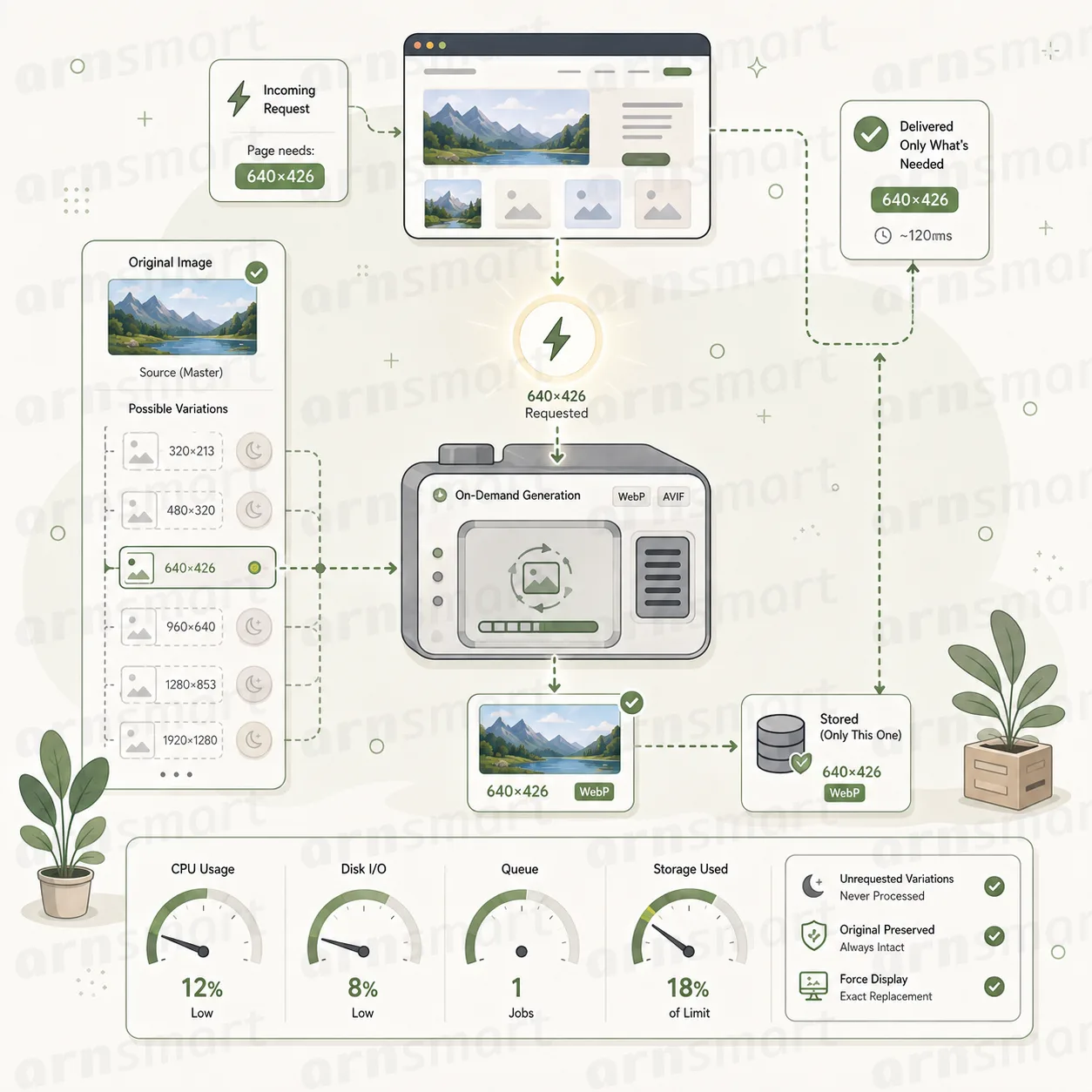
A large library can contain many image sizes that are rarely displayed. With request-driven generation enabled, WebPix can queue a missing optimized variation when a page requests that image, then reuse the completed copy on later requests.
The current request keeps the existing image when the required copy is not ready. Processing can continue in the background rather than making the visitor wait for conversion to finish.
Follow actual use. Missing variations enter the workflow through real requests rather than an obligation to pre-convert every possible size.
Reuse completed work. An available copy can serve subsequent requests without repeating the same generation step.
Choose the right approach. Use On-Demand for request-driven preparation, bulk jobs for upfront coverage, or a combination that fits your library.
In WebPix Pro this is the "Convert missing sizes on page view" setting. WebPix Free also converts missing copies seen on the site later in small background batches, and a file that fails is not tried again for 24 hours.
Resize & Compress
Reduce oversized source files when you choose to.
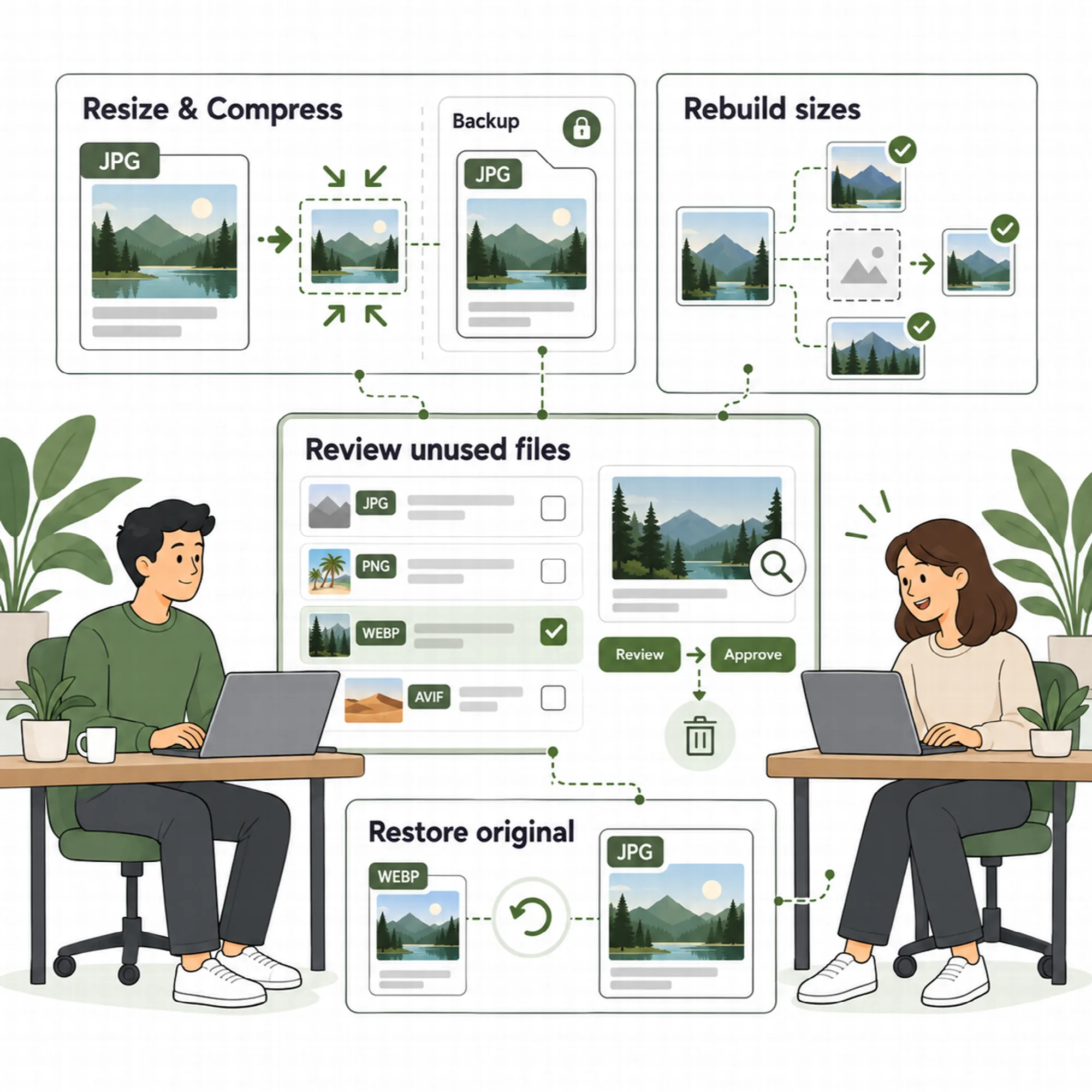
Format conversion produces separate copies. WebPix also offers optional controls for the source files themselves: resizing oversized new uploads and recompressing JPEG originals.
Resize new uploads. Set a maximum dimension so eligible incoming images can be scaled down before WordPress creates their generated sizes.
Compress JPEG originals. Apply an optional compression setting to new uploads or eligible existing JPEGs. Existing-library compression does not resize those images. A file is replaced only when it becomes clearly smaller, and JPEGs with an EXIF rotation are skipped.
Keep a restoration path. Leave original-file backups enabled to retain the files needed by the restoration workflow before applying source changes. Restoring puts the backed-up originals back and creates their WebP/AVIF copies again.
These controls are opt-in and part of WebPix Pro. Keep them disabled when you want format conversion without source-file modification, and review backup settings before changing originals.
Page Speed
Improve how important images arrive, not just how much they weigh.
A smaller file still needs to load at the right time. WebPix includes image-loading controls for the main image, missing dimensions and supported page-builder backgrounds.
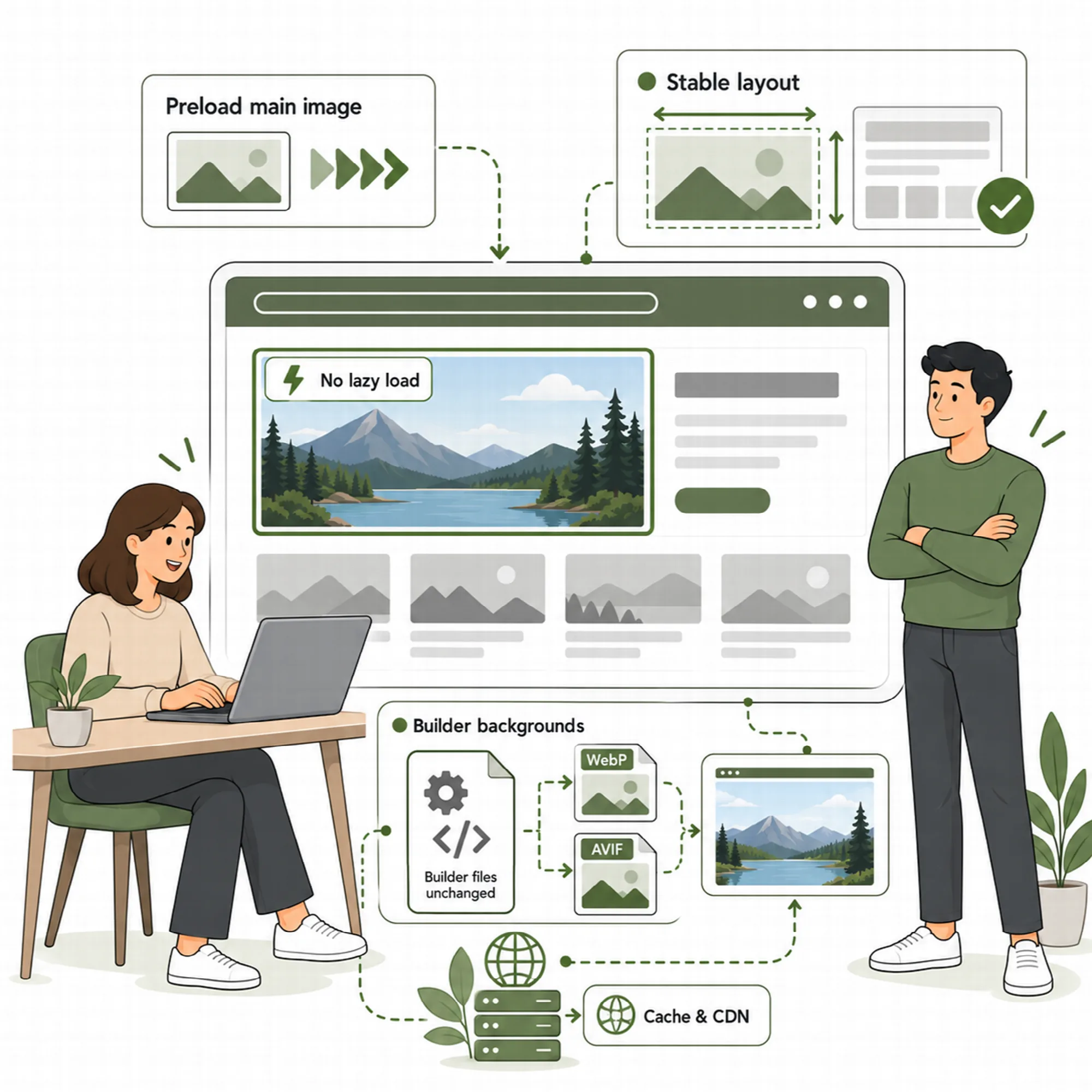
Main-image priority: Preload and prioritize the main image identified by the page-speed workflow, removing lazy loading where it would delay that image. Logos and icons are skipped, and the preload is added with URL delivery.
Image dimensions: Add available missing width and height information so the browser can reserve space while an image loads.
Builder backgrounds: Serve modern-format background images through supported stylesheet-copy handling while preserving the builder's source files. Copies of new or changed builder stylesheets, such as Elementor's, are prepared in the background through WP-Cron; until a copy is ready, the page loads the builder's own stylesheet, and an unchanged copy is not written again, so browsers keep their cached file.
These controls address image-related loading behaviour and are part of WebPix Pro. Overall page speed still depends on your theme, scripts, hosting, caching and page content.
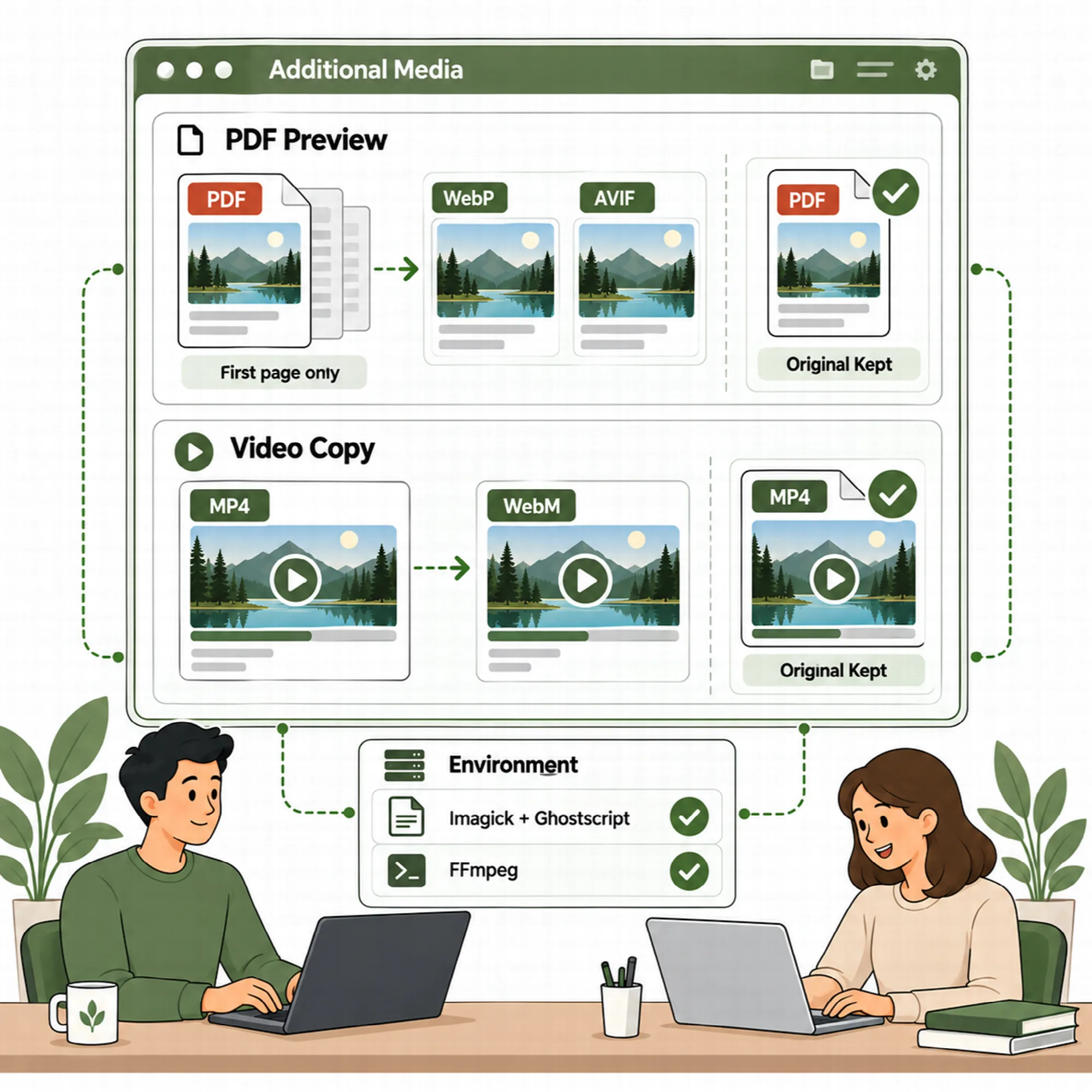
Additional Media
Extend the workflow to document previews and video copies.
PDF previews: Generate a modern-format preview from the first page of a PDF. This requires Imagick with PDF support, including a working Ghostscript setup on the server.
WebM video copies: Create an additional WebM version of supported video uploads while retaining the original video. Video conversion requires an available FFmpeg installation with the required encoders.
These features are optional, part of WebPix Pro and depend on the capabilities of your hosting environment. WebPix's environment and support checks help show which processing options are available.
A Practical Optimization Workflow
- Inspect a representative selection of images.
- Choose output formats and quality settings supported by your server.
- Convert that selection and review the result.
- Use background jobs or On-Demand to extend coverage.
- Review loading and delivery on the pages that matter to your website.
Questions About Optimization
Does conversion overwrite my original image?
Standard WebP/AVIF conversion creates separate copies. Optional resizing, JPEG original compression and watermarking are separate workflows with their own settings and backup behaviour.
Will On-Demand delay the first visitor?
When a required copy is missing, the delivery workflow can retain the existing image and queue the variation for background processing. Later requests can use the completed result.
Can every hosting account create AVIF, PDF previews and WebM?
Those outputs depend on the server's encoders and tools. Check AVIF encoder support, Imagick/Ghostscript for PDF previews and FFmpeg for video before enabling the corresponding features.
Continue Your WebPix Workflow
Reviewed against WebPix Pro 3.0.1 and WebPix Free 2.0.0 · Last updated 29 October 2026