

INDEPENDENT DRAFTS FROM EXISTING CONTENT
Duplication
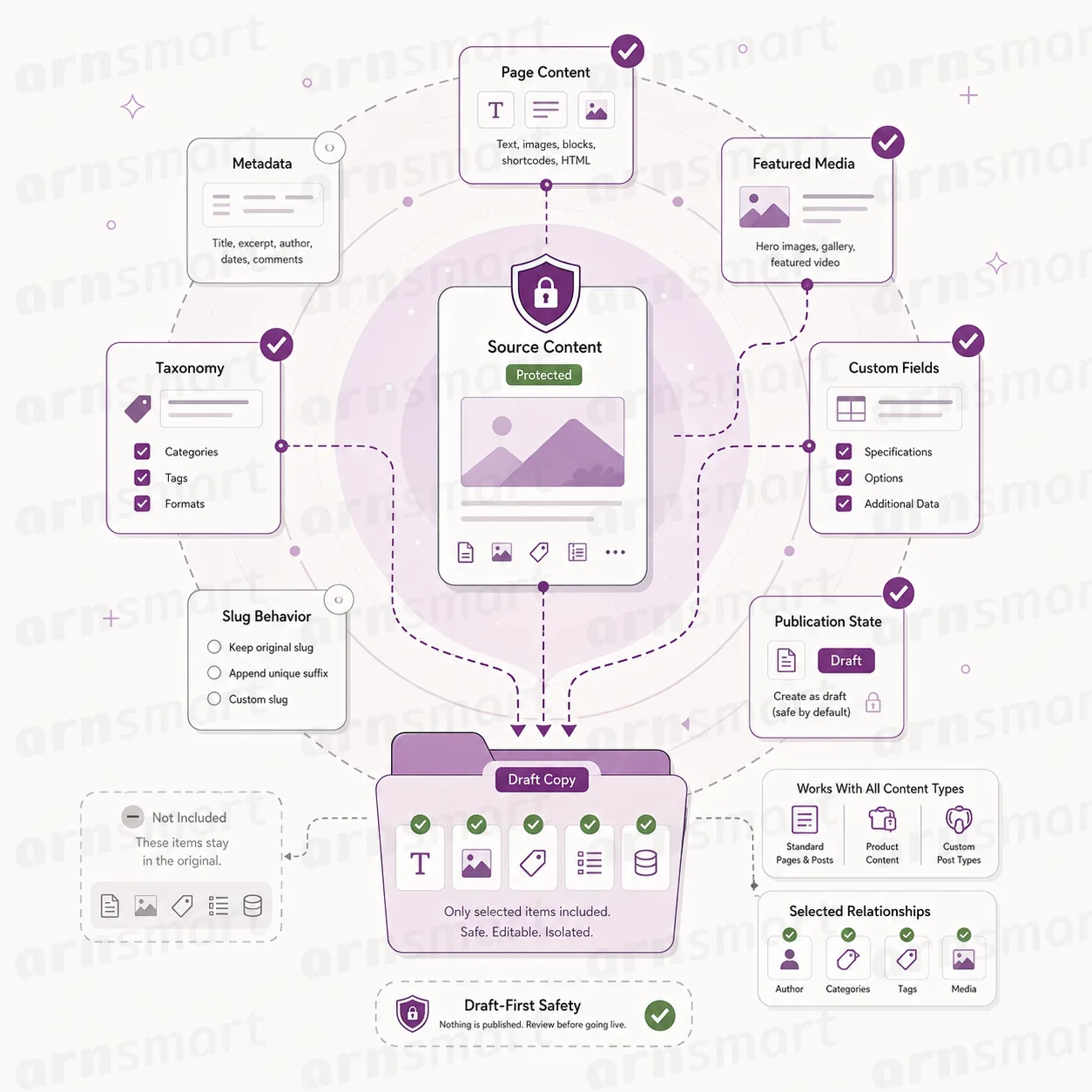
Clonex duplicates WordPress pages, posts, custom post types and WooCommerce products into independent drafts. Each copy can receive a new title and slug, several copies of one item can be prepared at once, text can be replaced after a preview, or a draft can start from a public URL that you review first.

Content Sources
Start from the page, post or product you already have.
Clonex duplicates any public content type that has an admin screen: pages, posts, WooCommerce products and custom post types such as portfolios, services or case studies. Media files, menus, reusable blocks, theme templates and ACF field groups are not offered as sources. Both editions start a copy from the same places in the WordPress admin, and Clonex Pro adds more of them.
Copy in the posts list. Every supported list shows a Copy row action to users who can edit the item. It creates an exact draft copy with the title, content, excerpt, featured image, terms, custom fields, SEO fields and builder data, then opens the copy in the editor.
Simple Mode. A guided screen for quick actions on one item: copy it as a draft, copy it with a new title, replace text or move content between terms. In Clonex Free it is the workflow screen under ARN Clonex.
Duplicate screen (Pro). A five-step flow (Input, Configure, Preview, Process, Result). Filter the source list by content type, title, taxonomy and term, choose what the copy keeps, set the output, check the preview and run.
Bulk actions in lists (Pro). "Bulk Duplicate" copies the selected items with their current status, and "Bulk Duplicate as Draft" creates drafts. A notice reports how many items were copied, skipped or failed and how many slugs were regenerated.
Admin bar shortcuts (Pro). The Clonex menu in the admin toolbar opens Simple Mode, Duplicate, Bulk Management, Templates, Variations, Datasets and Production.
A product copy keeps the product's own fields, such as price, stock and gallery. Clonex copies the product record itself; the separate variation records of a variable product are not copied with it. Product duplication requires WooCommerce. Builder and field data carried with the source is described in Structure & Data.

Independent Drafts
Every copy stands on its own, and the original stays as it was.
Every copy that Clonex creates is a new WordPress record with its own ID, its own status and its own editing history. The copy belongs to the user who created it. Editing, publishing or deleting the copy later does not reach back into the source.
Draft by default. The Copy action always creates a draft. Other screens let you choose the status, as described in Draft-First Output.
Unchanged source. Clonex reads the source and writes only to the new record. The original keeps its content, status and URL.
Exact copies in one step. The Copy action skips the preparation form and copies everything, including the parent page and a page password. It is available in both editions.
| Behaviour | Free | Pro |
|---|---|---|
| Copy created as an independent record | Yes | Yes |
| Source content left unchanged | Yes | Yes |
| Exact draft copy from the posts list | Yes | Yes |
| Copy with a new title and slug | Yes | Yes |
| Choose which parts the copy keeps | — | Yes |
| Bulk Duplicate from the posts list | — | Yes |
Clonex duplicates content records. It is not a website backup, migration or server cloning tool.
Draft Preparation
Give the copy its own title and slug before it exists.
Clonex prepares each copy with a new title and slug instead of repeating the source values. Simple Mode offers "Prepare with New Title" in Clonex Free and "Copy with New Title" in Clonex Pro, and the Clonex Pro Duplicate screen adds a new slug, slug rules and a title pattern.
New title. Enter the title the copy should carry, so a copy of "Plumbing Services in Austin" can arrive as "Plumbing Services in Dallas". Left empty, the title follows the pattern "{title} (Copy)", which Clonex Pro lets you change in Settings.
Slug rules. The slug is the part of the address after your domain name. Without a new slug, Clonex derives one from the title, and WordPress keeps every slug unique. Clonex Pro offers four slug modes (Auto, Keep Source Slug, Pattern and SEO Friendly) and slug safety rules in Settings: lowercase slugs, stop-word removal, transliteration and protection of reserved slugs.
Replace text after a preview. Replace Text changes words, place names or product names in the title and content of the item you select, after a mini preview shows what will change. Leave "Replace With" empty to remove the text. Clonex Pro also replaces text across many items at once; see Bulk Content Changes.
| Preparation option | What it changes | Edition |
|---|---|---|
| New title | Title of the copy | Free and Pro |
| Title pattern | Default title of every copy | Pro (Settings) |
| New slug, slug mode and slug safety rules | Address of the copy | Pro |
| Replace Text | Title and content of one selected item | Free and Pro |
| Content Replace | Title, content, excerpt, slug or fields of many items | Pro |
| Placeholders | Values that differ per generated draft | Pro |
Replace Text changes the item you select, so run it on the copy rather than on the source. It does not change text inside images, media file names or external embeds. To fill different values into each new draft while it is created, use Placeholders in Clonex Pro.

Page Variations
Turn one service page into a set of location or landing drafts.
Clonex prepares several copies of one source page in a single run. Simple Mode creates up to ten copies of one item at a time; rename each copy and replace the place or product name, and each variation becomes its own draft.
Copy count. Choose how many copies Simple Mode makes, from one to ten.
Workflow modes (Free). Full Content Prep and Draft Prep copy everything, Structure Only leaves out the featured image and SEO fields, and Media-Free Prep leaves out the featured image.
Quick presets (Pro). Draft Copy, Copy + Rename, Quick Replace, Safe 3 Copies and Move Term fill Simple Mode with a common setup in one click.
Location, service and landing pages. Duplicate a service page once per city, reuse an approved service layout for a related service, or start the next campaign page from the one that already converts.
Each variation remains a draft unless you choose another status. For dozens of variations driven by a table of values, Clonex Pro adds templates, datasets and placeholders; see Structured Datasets.

Public URL Imports
Bring a public page in as a draft you review first.
Clonex can create a draft from a public URL. Clonex fetches the page, cleans its content and shows it in an editing workspace, so you decide what the draft keeps before anything is saved.
Similar Draft (Free). Analyze a public URL, review the cleaned content and the detected images, edit the text, choose the content type and save it as a draft. Clonex Free allows three saved drafts per day on a website; fetching a preview does not use the daily count, and each user can analyze up to ten URLs per hour.
URL Import (Pro). Fetch a URL with cleaning options that remove share buttons, dates, source labels, tag blocks and a repeated title. Then edit the content, set the title and content type, choose images, and save the result as a draft that opens in the editor. There is no daily limit.
Bulk URL Import (Pro). Upload a CSV file with url, title and category columns, or paste one URL per line. Choose the content type, the status, the Article Import or Product → Landing Page layout and the image handling, then create an import job and process it in batches of 1 to 20 URLs. URLs that fail can be retried on their own with "Retry Failed URLs".
Apply Template (Pro). With Clonex Pro 2.0.1, Bulk URL Import can build every draft from a saved Clonex template. The content of the template's source page becomes the pattern, and {title}, {description}, {excerpt}, {content}, {image} and {source_url} are filled with the data of each imported page. A URL is not imported when the user cannot edit the template's source page.
Image handling. Import images into the Media Library, replace their addresses with local ones and use the first image as the featured image: the images you select in Similar Draft and URL Import, the first image of each page in Bulk URL Import. "Remove featured image from content body" then removes only the paragraph or figure that holds that image, so the rest of the text stays (Clonex Pro 2.0.1 and Clonex Free 1.1.1). Images are imported only for users who can upload files (Clonex Free 1.1.1 and Clonex Pro 2.0.1; in Bulk URL Import, the user who created the job); for other users the draft keeps the original image addresses and no featured image is set.
Clonex reads pages up to 2 MB and up to 30 images per page. Retrieval depends on the remote page being reachable and on how it is built. Imported material remains subject to usage rights, factual verification and your own editorial policy before publication.

A Practical Duplication Workflow
- Open the posts, pages or products list and find the item that should serve as the source.
- Use Copy for an exact draft, or open Simple Mode or the Clonex Pro Duplicate screen for a new title, status or several copies.
- Check the preview, then create the copies.
- Replace place or product names in each copy with Replace Text.
- Open each draft in your editor, check the content, and publish it when you are ready.
Questions About Duplication
Does duplicating a page change the original?
No. Clonex writes only to the new record, and the source keeps its content, status and address.
Is the copy published automatically?
Not unless you choose it. The Copy action and URL imports create drafts; Simple Mode and the Clonex Pro screens let you pick another status, and publishing needs the WordPress capability to publish that content.
Can the Free edition duplicate WooCommerce products?
Yes. Both editions duplicate products, pages, posts and custom post types. Clonex Pro adds bulk duplication and finer control over what the copy keeps.
What happens to content imported from a URL?
Clonex fetches the page and shows it for review before any draft is created. You are responsible for the usage rights and accuracy of imported material.
Continue Your Clonex Workflow
Reviewed against Clonex Pro 2.0.1 and Clonex Free 1.1.1 · Last updated 29 October 2026