

BUSINESS SETUP AND PLATFORM CONTROL
Administration
Eagle3D administration covers the individual or company business profile, sales channels with commission, tax rates, categories and value lists, country-aware phone formats, currency and time zone, twelve languages with right-to-left layouts, user roles, an installable mobile app, backups with restore, updates and security on your own server.
Business Profiles
Set up Eagle3D for a one-person workshop or a growing company.

Eagle3D offers two operating models, chosen in the setup wizard and changeable in Settings → General. The individual profile suits a maker or a small studio with one to three printers. The company profile adds staff management and multiple user accounts, and general staff salaries flow into the overhead used by the cost engine.
Individual / Small Workshop. One administrator account, simple overhead and an hourly rate for your own labor.
Business / Print Farm. The Staff screen with monthly staff costs and the suggested hourly labor rate, plus Settings → Users for team accounts with roles.
How staff costs reach product prices is described on Labor and Overhead.
Sales Channels, Taxes and Categories
Define the lists that every order, product and report depends on.
The Settings screen groups daily business settings on the left and rarely changed system settings at the top. Each sales channel carries its own commission percentage and fixed fee, which the cost engine applies to orders assigned to that channel.
| Business setting | What it controls |
|---|---|
| Cost Settings | Electricity price per kWh, hourly labor rate, working days per month and repair rate |
| Order Settings | Default status for new orders, required city and district, balance warning, quote prefix and default quote validity |
| Material Types | Types used to group non-filament materials |
| Overhead Expenses | Monthly expenses with their distribution type |
| Sales Channels | Channel names with commission percentage and fixed fee |
| Tax Settings | The tax rate included in prices; profit is calculated without it |
| Templates | WhatsApp, print and email templates |
| Values | Product categories (also the storefront tabs), supplier types and overhead distribution types |
| Store Connections | Web store imports and write-back |
| Online Orders | The public order page and tracking page |
System settings are General, Users (company profile), Email, Backup, Update and License. Commission is applied in costing as described on Sales-Channel Commission, and channel results appear on Sales by Month, City and Channel.
Country, Currency and Locale
Work in your own currency, number format and time zone.
The country setting covers 37 countries and sets the phone number format, the WhatsApp country code and the city list. Country-aware formats are what allow customers to be matched by phone number across channels, including numbers sent by stores with or without the country code.
- Country with phone format and WhatsApp country code for 37 countries.
- Currency symbol and number format: 1.234,56 or 1,234.56.
- Time zone for dates, due dates and reports.
- Site name and the prefix of order numbers.
- City and district lists used in customer forms, editable in Settings → General.
Customer matching by phone number is described on Customer Records.
Languages and RTL
Run the workshop and the storefront in the language your team and customers use.

Twelve languages ship with Eagle3D: English, Turkish, Arabic, Hebrew, Persian, German, French, Italian, Spanish, Dutch, Russian and Greek. The language chosen in Settings → General applies to the whole panel, the online order page and the tracking page; Arabic, Hebrew and Persian switch the layout to right-to-left.
Twelve built-in languages. Every interface text is translated in all twelve; a text missing from a language falls back to English.
Right-to-left layouts. Mirrored screens for Arabic, Hebrew and Persian.
Bundled typography. Fonts for Latin, Arabic, Hebrew, Cyrillic and Greek scripts are installed locally, with no third-party font requests.
One language per installation. The panel and the storefront use the same language; visitors do not choose a separate one.
New languages from a single file. Copy the English language file, translate it and upload it; the new language appears in the language list, and updates do not overwrite added files.
The setup wizard itself runs in English or Turkish.
Users and Roles
Give each team member the access their job requires.

In the company profile, Settings → Users creates accounts with one of four roles: Administrator, Operations, Production and View Only. Each role sees only its menus, so a production worker follows orders and production without opening settings or reports.
| Role | Access |
|---|---|
| Administrator | Full access, including settings, staff, users and reports |
| Operations | Dashboard, customers, orders, quotes, stock and suppliers |
| Production | Dashboard, orders, production and stock; can update status and shipping but cannot delete orders or change payments |
| View Only | Sees everything except settings and staff, and cannot change anything |
At least one active administrator always remains, and users cannot remove their own administrator role. Each user changes their own password under My Account; passwords need at least eight characters.
Mobile App
Use Eagle3D on the workshop floor from any phone.

Eagle3D can be installed as an app on a phone's home screen. It is a progressive web app (PWA), an installable version of the web interface, so no app store download is involved. The mobile layout uses a bottom navigation bar and card views instead of wide tables.
Installable PWA. Add Eagle3D to the home screen of any phone, with its own icon.
Bottom navigation. Dashboard, Orders, a "New" order button, Customers and a full menu, filtered by the user's role.
Always current data. Pages and data always come from the server; without a connection the app shows an offline screen instead of old figures.
The mobile app uses the same self-hosted installation and the same roles as the desktop interface.
Backups and Updates
Keep a copy of your data and install new versions without risk to it.
Settings → Backup takes database backups on demand and once a day automatically, and restores them from inside Eagle3D. Settings → Update installs new versions from the ARN server with a backup taken first.
- "Back Up Now" for manual backups, which are never deleted automatically.
- Automatic daily backup, taken when the dashboard is first opened that day, keeping the number of automatic backups you choose (14 by default).
- Download a backup as a compressed SQL file, or upload a backup file downloaded from Eagle3D.
- Restore after typing RESTORE; a backup of the current state is taken first, and every statement in the file is checked before it runs.
- Update notice in the panel when a new version is available, with release notes and package size.
- Updates require an active license and the PHP zip extension; the package is checked against its SHA-256, the database and every file that will change are backed up, and failed changes are rolled back.
Updates never touch the settings file, your data or your backups. Backups are stored on your own server; download them regularly and keep a copy elsewhere.
Security and Data Ownership
Own the data, and protect the login that reaches it.
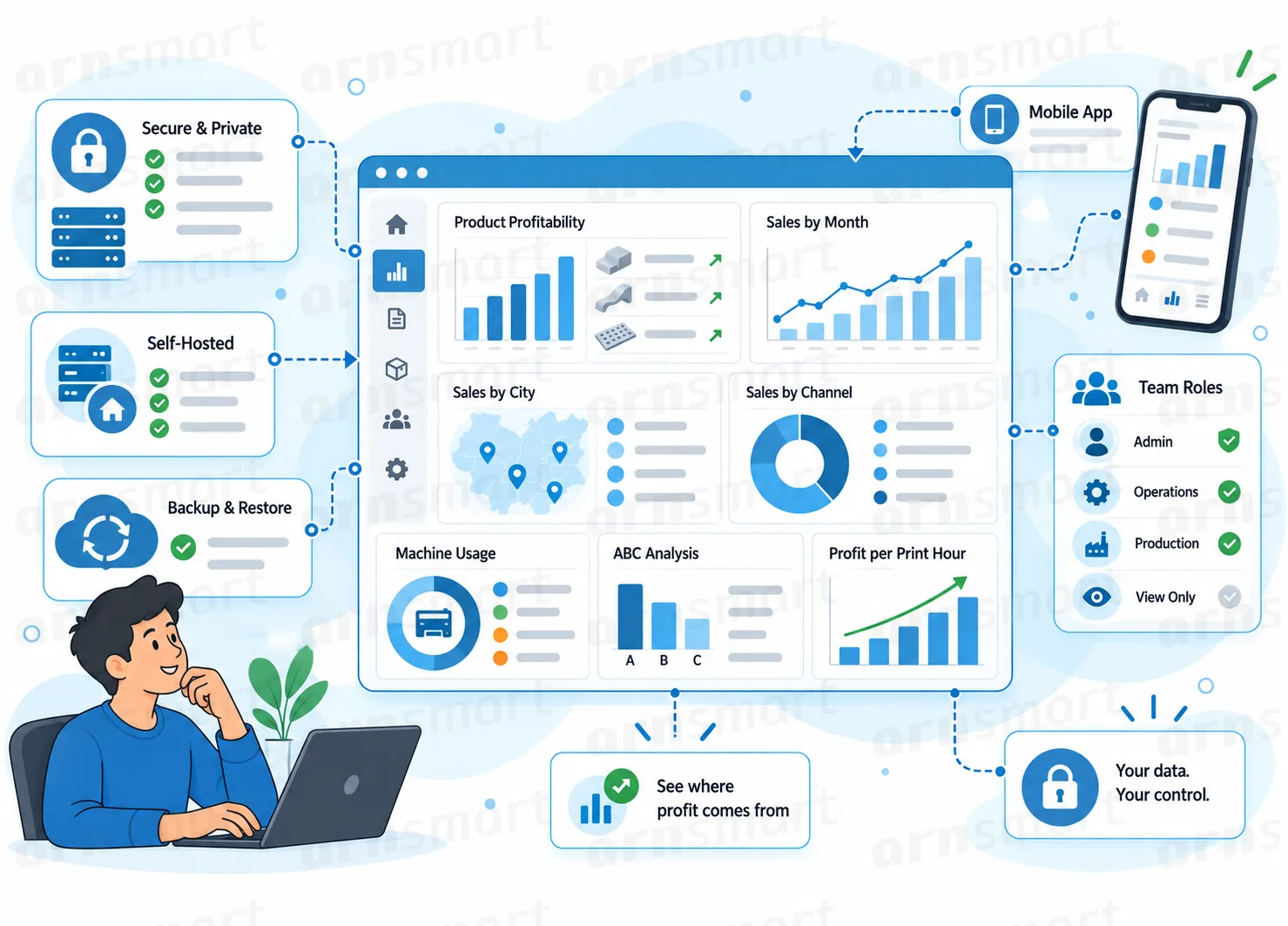
Eagle3D is self-hosted, so customers, orders, costs and reports are stored in your own database on your own server. Login protection, role checks and signed license and update data guard the administrative interface.
Self-hosted data. Your business data stays on your server and in your database.
Login protection. After five failed sign-ins for one username from one address, or ten from one address, sign-in is paused for 15 minutes; the sign-in form is protected against forged requests.
Secure sessions. Changing a password signs out the account's other sessions, and every change request carries a security token.
Content Security Policy. Pages load scripts, styles and fonts only from your own server.
Encrypted store credentials. Store API keys are encrypted, as described on Store Write-Back and Credentials.
Signed license and updates. License responses and update information from the ARN server are verified with digital signatures before they are used.
Behind Cloudflare or a reverse proxy, the TRUSTED_PROXIES setting lets limits use the real visitor address. Server-level security, HTTPS and hosting backups remain the responsibility of your hosting setup.
A Practical Administration Workflow
- Choose the individual or company profile and add staff if salaries should enter overhead.
- Fill in Cost Settings, then define sales channels, the tax rate, categories and value lists.
- Check the country, currency, number format, time zone and language in Settings → General.
- In the company profile, create users with the Administrator, Operations, Production or View Only role.
- Install the mobile app on workshop phones, confirm daily backups are running and download a copy.
Questions About Administration
Does Eagle3D support right-to-left languages?
Yes. Arabic, Hebrew and Persian switch the whole panel and the storefront to right-to-left, with fonts bundled locally.
Is there a native app in the app stores?
No. Eagle3D is installed as a progressive web app from the browser onto the phone's home screen.
Where are backups stored?
On your own server, as part of the self-hosted installation. Backups can be downloaded, and restore is run from inside Eagle3D.
Can a production worker see prices and reports?
The production role opens orders, production and stock but not reports or settings, and it cannot delete orders or change payment amounts.
Continue Your Eagle3D Workflow
Reviewed against Eagle3D 2.0.0 · Last updated 29 October 2026