

ONLINE STORE INTEGRATION AND CUSTOMER MESSAGING
Store Sync & Communication
Eagle3D imports paid orders from WooCommerce, Shopify, BigCommerce, Ecwid, PrestaShop, Wix and Square Online with the customer, address, products and shipping fee, matches products by SKU and can write shipped status and tracking back to the store. WhatsApp templates, printable slips and email notifications keep customers informed.
Supported Store Platforms
Keep your existing web store and let its orders flow into one workflow.

Eagle3D connects to seven store platforms in Settings → Store Connections. The store keeps selling and processing payments as before; Eagle3D takes over once an order is paid.
| Platform | What the connection needs |
|---|---|
| WooCommerce | A REST API key: Read for import only, Read/Write for write-back |
| Shopify | An Admin API access token (read_orders; write_fulfillments for write-back) |
| BigCommerce | A store-level API account and the store hash |
| Ecwid by Lightspeed | The Store ID and secret token of a custom app |
| PrestaShop | A Webservice key; tracking numbers are entered in PrestaShop |
| Wix | An API key and the Site ID |
| Square Online | A production access token; Square orders carry no SKU, so products are mapped once |
Each connection has a name, a store address starting with https://, an "Import orders after" date and a sales channel. "Test Connection" checks the credentials, and "Sync Now" imports new orders when you press it; the settings screen shows step-by-step hints for each platform. Eagle3D does not pull store orders on a schedule.
Paid-Order Import
Bring the whole order across, not just the line items.

Paid orders are imported together with the customer, address, products and shipping charge. The customer is matched by phone number to an existing Eagle3D record, so a web store buyer who later orders by WhatsApp stays one customer.
Customer and address. Contact and delivery details are created or matched on import; an order without a customer phone number is reported and not imported.
Shipping as a separate line. Shipping charges arrive as their own order line; on BigCommerce, handling and gift wrapping charges do too.
Same record as any other order. An imported order keeps the store's order date, uses the connection's sales channel and is costed like a manual order.
Each platform imports its paid or payment-confirmed orders; on WooCommerce these are orders in the processing, on-hold and completed statuses. Orders already imported are skipped, and each sync reports new, pending, existing and failed orders. Customer matching is explained on Customer Records.
SKU Matching
Map each store product to a costed catalog product once.
Products are matched by SKU. When an imported line matches a catalog product, the line takes that product's recipe and cost. Orders with unmatched items wait in the Pending Orders list until you map them, and the mapping is remembered for the next import.
- Automatic match when the store SKU equals the catalog SKU.
- Pending Orders list for orders with unmatched items.
- "Map" a store product to a catalog product once, or "Import as custom line".
- "Retry" imports the pending orders after mapping.
SKUs must exist on the catalog products you want matched automatically; other products are mapped once from the Pending screen.
Store Write-Back and Credentials
Close the loop in the store when you ship.
When you mark an order as Shipped in Eagle3D, the optional write-back completes the order in your store and adds the tracking details. Customers who check the store see the same shipped status your team recorded, and the store sends its own email to the customer.
Optional write-back. Enable it per connection; without it, Eagle3D only reads and never changes store orders.
Shipped status and tracking. The order is marked completed in the store with the shipping company, tracking code and link from Eagle3D.
Encrypted store credentials. Store API keys are encrypted with AES-256-GCM using the installation's own key on your server; a saved key is never shown again.
Deleting a connection keeps the orders already imported. Write-back needs the store connection to allow order updates through its API.
Message and Print Templates
Send the same clear message every time, and print what the workshop needs.
Ready-made WhatsApp messages cover new order, shipped, thank-you and payment or balance reminders. Each template uses order variables, so the customer's name, order number, products, balance and tracking details are filled in automatically.
WhatsApp message templates. The order screen opens the chosen message in WhatsApp, addressed to the customer's WhatsApp number or phone.
Editable message and print templates. Change wording and layout in Settings → Templates, keep several templates per type and set one as the default.
Order variables. Order number, name, phone, WhatsApp, city, district, address, products, total, paid amount, balance, note, date, shipping company, shipping code, tracking code and cargo link.
Cargo slips and workflow slips. Print shipping slips for the carrier and workflow slips for the workshop, one at a time or in bulk for selected orders.
Messages are prepared in Eagle3D and sent from your own WhatsApp; no WhatsApp API subscription is needed or used.
Email Notifications
Let email tell you about new orders and tell customers about progress.
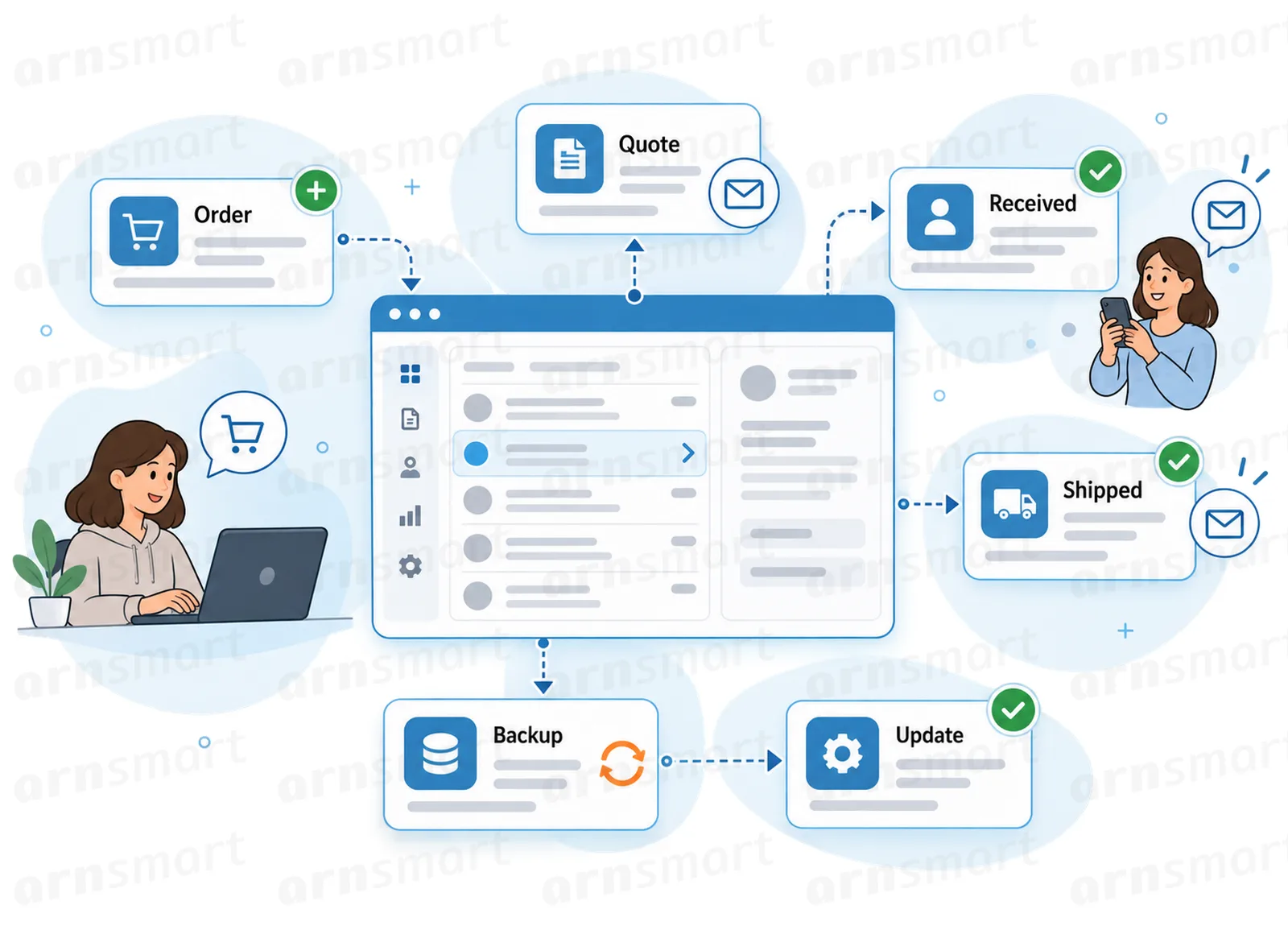
Eagle3D sends email through your own mail account once sending is enabled in Settings → Email. New orders reach your inbox, customers are notified when their order is received and when it ships, and quotes can be sent by email.
| Automatic email | When it is sent |
|---|---|
| Order received (customer) | Orders from the panel, the online order page and converted quotes |
| Shipped (customer) | When the order status first becomes Shipped |
| New order (admin) | Orders from the online order page and connected stores, to one or more admin addresses |
| Quote (customer) | When you press "Send by email" on a quote |
- Each email type has its own template with a subject in Settings → Templates.
- Sending through your SMTP account, or through the server's PHP mail() function when no SMTP server is set.
- A test email and a log of recent emails with sent or failed status.
Customer emails go only to customers with a saved email address; for store orders the store emails the customer itself. An SMTP account from your hosting panel is recommended, because mail() messages often land in spam. Quote preparation is described on Quotes.
A Practical Sync and Messaging Workflow
- Connect your store with its API credentials, choose its sales channel and enable write-back if you want shipped status returned.
- Add SKUs to catalog products so imported lines match automatically.
- Press "Sync Now", review the Pending Orders list and map any unmatched products once.
- Move the imported order through production and print the workflow slip.
- Mark the order Shipped, send the WhatsApp shipping message and let the tracking details reach the store.
Questions About Store Sync and Communication
Which store platforms can Eagle3D import from?
WooCommerce, Shopify, BigCommerce, Ecwid, PrestaShop, Wix and Square Online. Each needs API credentials from the store account.
Are store orders imported automatically?
Orders are imported when you press "Sync Now" on a connection. Each sync starts shortly before the previous one, so no paid order is missed and no order is imported twice.
What happens to a store product that has no matching SKU?
The order waits in the Pending Orders list until you map the product once or import it as a custom line. The mapping applies to later imports.
Does Eagle3D send WhatsApp messages automatically?
No. Eagle3D prepares the message from a template with order variables and opens it in WhatsApp; you send it from your own account.
Do customers receive emails about their order?
Yes, when email sending and the matching automatic emails are switched on and the customer has an email address. Customers are emailed when an order is received and when it ships.
Continue Your Eagle3D Workflow
Reviewed against Eagle3D 2.0.0 · Last updated 29 October 2026