

STRUCTURED ORDER MANAGEMENT
Order Operations
Eagle3D turns orders from the storefront, connected web stores, WhatsApp, phone and accepted quotes into one structured order record. Each order holds the customer, catalog products and custom lines, payment balance, due date, shipping details and its production stage.
Order Capture
Never lose an order between channels again.

An order can start on your storefront, in your web store, in a WhatsApp chat, during a phone call or as an accepted quote. When each channel keeps its own list, requests get missed and nobody knows which one is still open. Eagle3D brings web store, WhatsApp and phone orders into one list.
Every channel produces the same order record, and the record remembers where it came from. Each order is connected to one customer, priced from your catalog, given the default status for new orders and made visible on the dashboard. Quotes, production, stock and shipping then run together from that record.
| Channel | How the order enters Eagle3D |
|---|---|
| Storefront | Submitted by the customer on your order page |
| Web store | Imported from a connected store through Store Sync, with the store's own order date |
| WhatsApp or phone | Entered with the order form, also from the "New" button on a phone |
| Quote | Converted from a quote with one button, prices unchanged |
Storefront ordering is described on Order Storefront, and store import on Supported Store Platforms.
One Order Record
Keep the customer, the products, the money and the shipment on one screen.
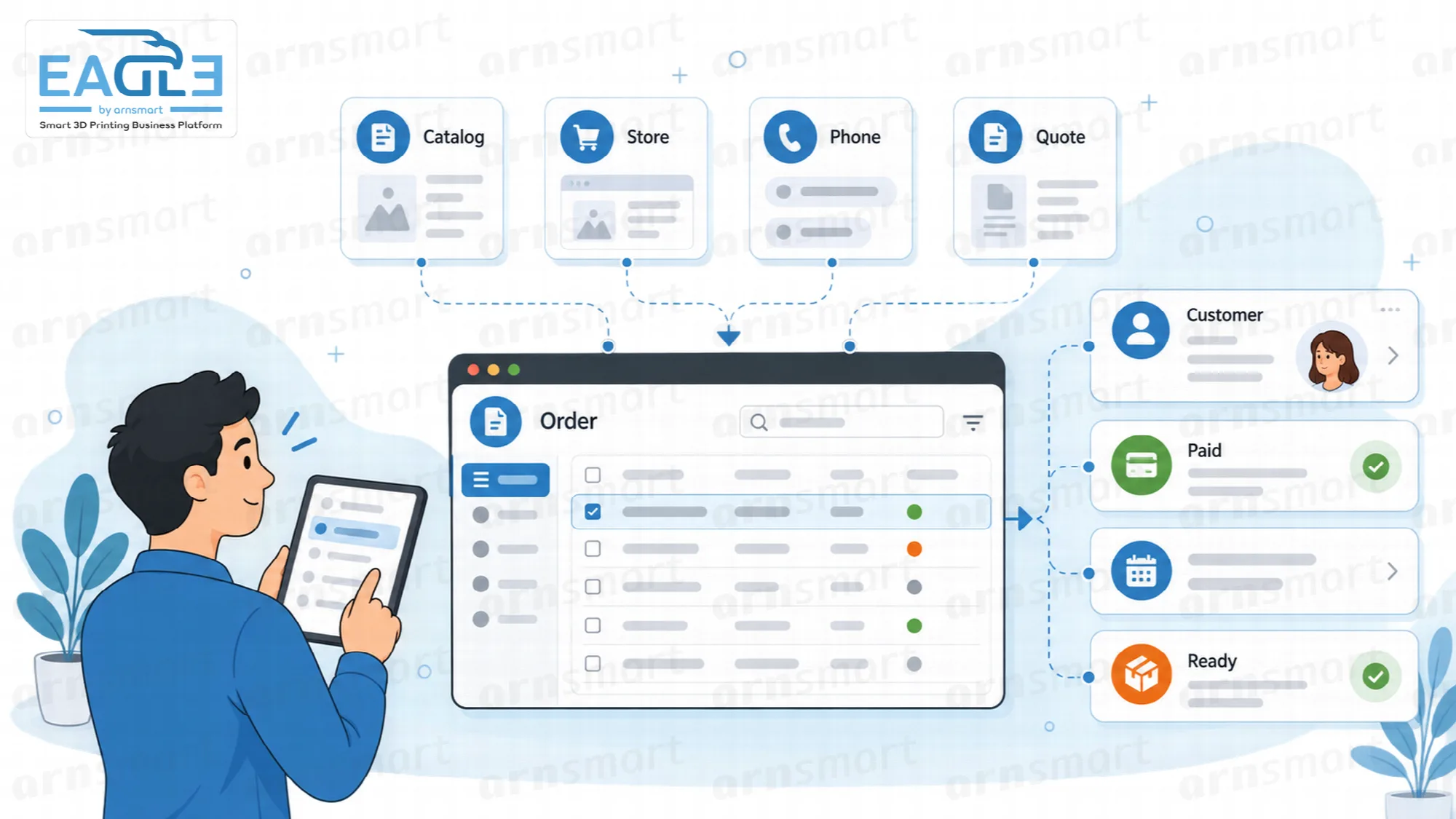
Each order has one clear record. The customer, the products and custom work, the price given to the customer, payment, due date, shipping and production status all live in it. Nobody needs to open a chat history to find out what was promised.
Price and discount. The total is calculated from the lines; a lower "Price Given to Customer" or a discount rate spreads the discount across the lines.
Sales channel. Each order can carry a sales channel, so its commission and fees enter the cost; without one it is a direct sale.
Payment and balance tracking. Record the paid amount and see the open balance. The balance turns red when the unpaid part exceeds the percentage set in Order Settings.
Shipping details and tracking links. Store the shipping company, shipping code, cargo link, cargo ID and an internal tracking code, and copy them with one click.
Internal note. An order and production note appears on the internal slip and the production screen, never to the customer.
Cost and profit for each line are saved on this record when the order is saved; see Frozen Cost per Order Line.
Production Stages and Due Dates
Know which order is next and which one is late.

Orders move through seven stages from "Received" to "Completed", and an order that will not be made is marked "Cancelled". The current stage is visible in the order list, on the order record and on the customer's tracking page, so the whole team reads the same status.
| Stage | Typical meaning |
|---|---|
| Received | The order is recorded; the default for new orders can be changed in Order Settings |
| Preparing | Files and material are being prepared |
| In Production | The part is printing |
| Quality Check | The print is checked |
| Packaging | The order is being packed |
| Shipped | The order has left; store write-back and the shipped email follow this stage |
| Completed | The order is closed |
| Cancelled | The order is stopped; deducted stock is added back |
List views. New Orders, Preparing, Shipped, Completed, With Balance and All, with search by customer, phone or order number.
Due dates with overdue warnings. An order can carry a due date. Orders past that date and not yet shipped are marked "Overdue" in the list and counted in a dashboard alert.
The dashboard summary of overdue orders is described on Operations Dashboard.
Fast Order Entry and Custom Lines
Enter a WhatsApp or phone order in seconds, including work that is not in the catalog.

Typing a known phone number fills in the customer automatically, so a repeat customer's order starts with their details already in place. A new number creates the customer record when the order is saved. Catalog products and custom lines can be combined in the same order form.
Automatic customer fill by phone number. A recognized number loads the customer's name, contact details, address and order count.
Catalog products and custom lines together. Add design work, services or packaging as custom lines with their own unit price and unit cost.
Cost-only lines. A custom line with price 0 and a cost adds a cost without revenue, for packaging or special shipping.
One form for every manual order. Orders taken in person, by phone or by message use the same entry form.
Phone numbers use country-aware formats, described on Country, Currency and Locale.
Quotes
Answer a price request quickly and turn acceptance into an order with one click.

Quotes are priced from the same catalog and cost engine as orders. A quote can include a discount, a delivery charge, a validity date, a note for the customer and an internal note, and can hold custom lines for design work or services. Prices include the tax rate set in Tax Settings.
- Follow each quote as Draft, Sent, Accepted, Rejected or Converted to Order; open quotes past their date are marked "Expired".
- See estimated cost and profit while preparing the quote; they never appear on the quote document.
- Print the quote or save it as PDF from the browser, or send it to the customer's saved email address.
- Convert the quote into an order; quote prices carry over unchanged and the converted quote becomes read-only.
- Keep the quote in the customer's history next to their orders.
Quote numbers use their own prefix and default validity in Order Settings. Quote emails are described on Email Notifications. One-off pricing before a quote exists is covered by the Quick Cost Calculator.
Customer Records
Keep one customer, one record and one history across every channel.

Each customer has one record, identified by phone number, with company, WhatsApp, email, city, district, address and notes. Orders from the storefront, a web store, WhatsApp and phone are matched to that record, so one customer does not become three duplicates.
One record per customer. Matching by phone number prevents duplicates across channels; a number already used by another customer is refused.
History on one screen. The record shows the customer's orders, quotes, total sales and open balance.
Balance you can act on. Open balances are visible on the customer record and on each order.
Search and filter. Search by name, phone or company and filter the list by city.
A customer with orders cannot be deleted, so order history stays complete. Message templates and printed slips for customers are described on Message and Print Templates.
A Practical Order Workflow
- Receive a request by WhatsApp and type the phone number to load the customer.
- Add catalog products and a custom line for the design work.
- Set the due date, record the deposit and save the order so cost and profit are recorded on each line.
- Move the order through the production stages as printing, checking and packing complete.
- Add shipping details and the tracking link, mark the order shipped and later completed.
Questions About Order Operations
How does Eagle3D avoid duplicate customers?
Customers are identified by phone number with country-aware formats. An order from any channel with a known number is attached to the existing record.
Can an order mix catalog products with custom work?
Yes. Catalog products and custom lines for design, services or packaging can be combined in one order or quote.
What happens when a quote is converted?
An order is created with the quote's prices, and the quote is marked "Converted to Order" and can no longer be edited. The customer needs an address on file before the quote can be converted.
Where do overdue orders appear?
Overdue orders are counted in a dashboard alert and marked "Overdue" in the order list until they are shipped.
Continue Your Eagle3D Workflow
Reviewed against Eagle3D 2.0.0 · Last updated 29 October 2026