

Import
BRING OLD MAIL HOME IN ONE MOVE
Mailix Import copies mail once from Gmail, Zoho or any IMAP server into an Imported folder, keeps read, star and answered flags and original dates, never adds a message twice, can prepare older years straight as a downloadable archive when the quota is short and imports Mailix archives, .mbox, .eml and .zip files.
From Gmail, Zoho or Any IMAP Server
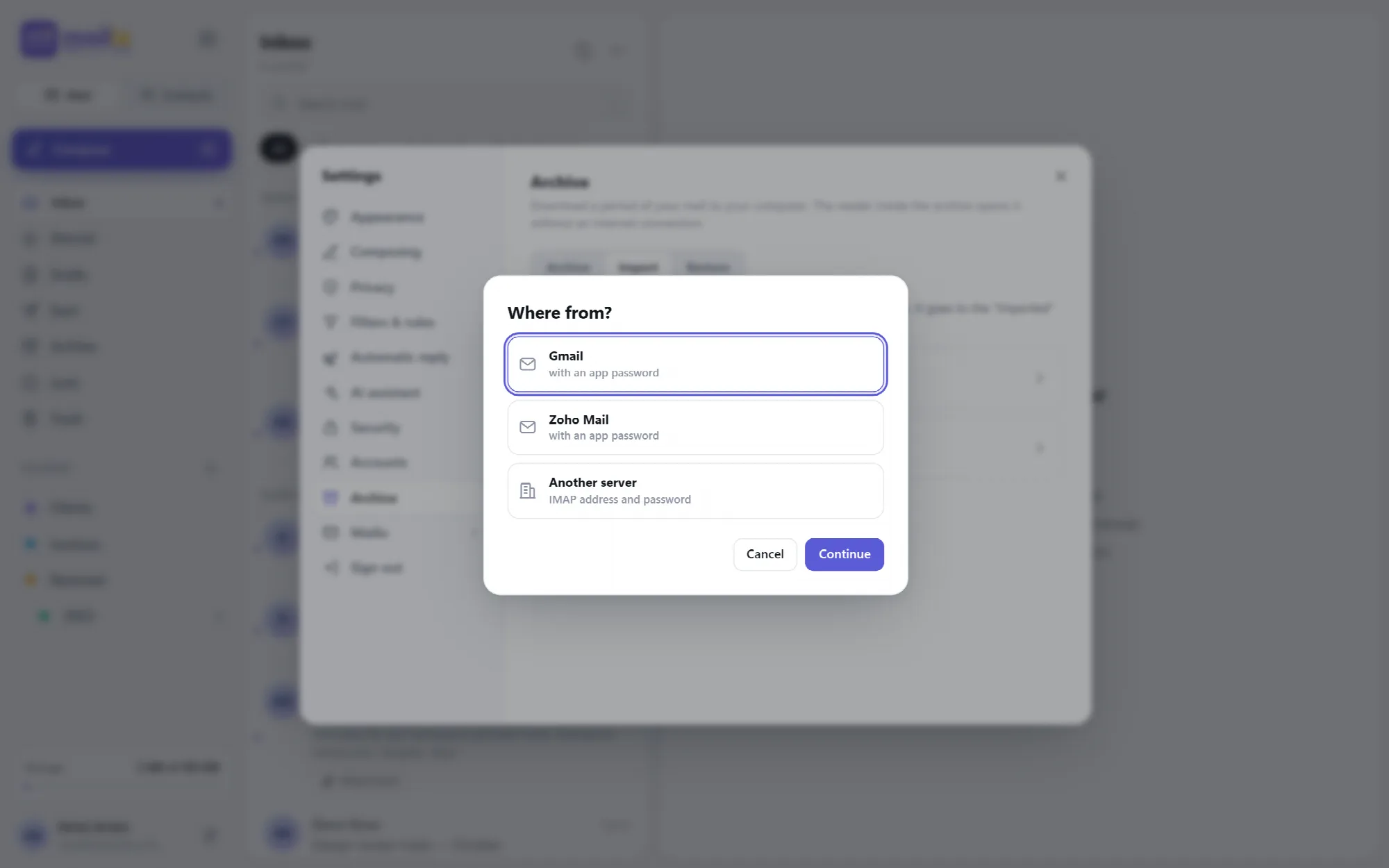
Connect the old account with the details its provider gives you.
Import lives in Settings → Archive → Import. It is a one-time move, not a continuous sync, and the imported mail goes to its own Imported folder so it never mixes with the mailbox's folders.
| Source | What you enter |
|---|---|
| Gmail | The email address and a 16-letter Google app password |
| Zoho Mail | The region (zoho.com, zoho.eu, zoho.in or zoho.com.au), the address and the password or a Zoho app password |
| Another server | The IMAP server, port 993 (SSL) or 143 (STARTTLS), the user name and the password |
IMAP is the standard way mail programs read a mailbox on a server. For Gmail, an app password is created in the Google account under 2-Step Verification; company Google Workspace accounts may have IMAP turned off by their administrator.
Test connection signs in to the old account and lists its folders before anything is copied.

View the interface example
Choose What Comes Over
See every folder, its size and the free space first.
Mailix shows the old account's folders with their message counts and sizes. All folders start selected, and unwanted ones can be unticked.
- Gmail. Spam and Trash are not imported, and Important and Starred do not become folders, because they would bring the same message twice or bring unwanted mail.
- Gmail's unlabeled mail. All Mail appears as Mail archived without a label. From it, only the messages that are in no other folder come over, into an Archived folder, so mail archived without a label is not left behind and nothing comes twice.
- Other servers. Junk and Trash are not imported.
- Free space. The total size is shown next to the mailbox's free quota.
Mail lands under Imported › old address › folder, and Gmail labels become folders, with nested labels as subfolders. Every old account gets its own folder. The folders Mailix names itself, such as the old account's Inbox and Archived, use the interface language of the import, for example Gelen Kutusu in Turkish.
When the Quota Is Not Enough
Bring the recent years in and keep the old years as an archive.
When the old mail does not fit into the mailbox quota, Mailix fills the free space from the newest year backwards and offers two choices:
- Recent years into the mailbox, older years as a direct archive. The older years never enter the mailbox. Mailix reads them from the old account and prepares the same downloadable ZIP archive with an offline reader. See Archive & Backup
- Only the years that fit. The older years are left in the old account.
Messages without a readable date always come into the mailbox. The direct archive appears under Archive › Ready archives once it is prepared.

Safe and Resumable Copying
Move thousands of messages without duplicates or lost flags.
Flags and dates. Read, starred and answered marks and the original date of every message are kept.
No duplicates. A message that already exists in the target folder is skipped. Running an import again, or continuing an interrupted one, never adds the same message twice.
Resumes where it stopped. The import runs in short steps while the page is open, and Mailix can be used meanwhile. If the page closes, the import continues when Mailix opens again.
Clear states. The Imports list shows the progress, and Continue resumes an import that paused because the old server stopped answering or stopped because the mailbox was full.
Messages larger than 30 MB are skipped and counted. Gmail allows about 2.5 GB of IMAP downloads a day, so a larger Gmail account continues on another day with Continue.
View the interface example
Import From Files
Bring in mail that was exported from another program.
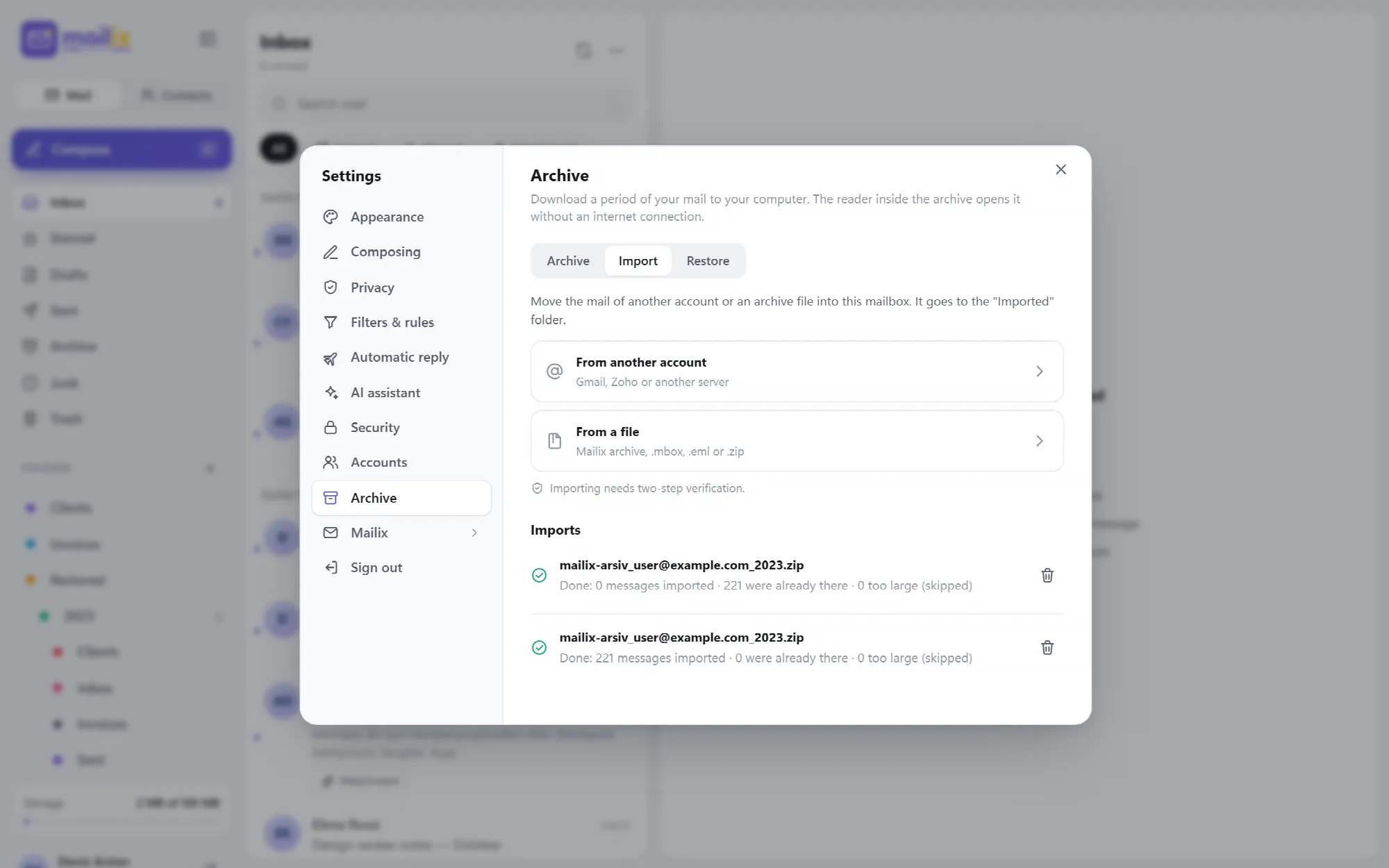
Import from a file reads the file on the user's computer and sends the messages in small batches, so even files of several gigabytes do not hit upload limits.
| File | Where the mail goes |
|---|---|
| Mailix archive (.zip) | Restored › year › original folder, with flags and dates |
| Google Takeout .mbox | Imported › chosen name › one folder per Gmail label |
| Thunderbird or Apple Mail .mbox | Imported › chosen name › mailbox file name, with their read marks |
| .eml files or a .zip of them | Imported › chosen name |
Google Takeout messages labelled Spam, Trash or Chat are skipped, and messages without a label go to an Archived folder. A file import that stopped halfway cannot be continued; choosing the file again adds only the messages that are missing.

View the interface example

Protection for Imports
Keep someone else's mail, and someone else's password, safe.
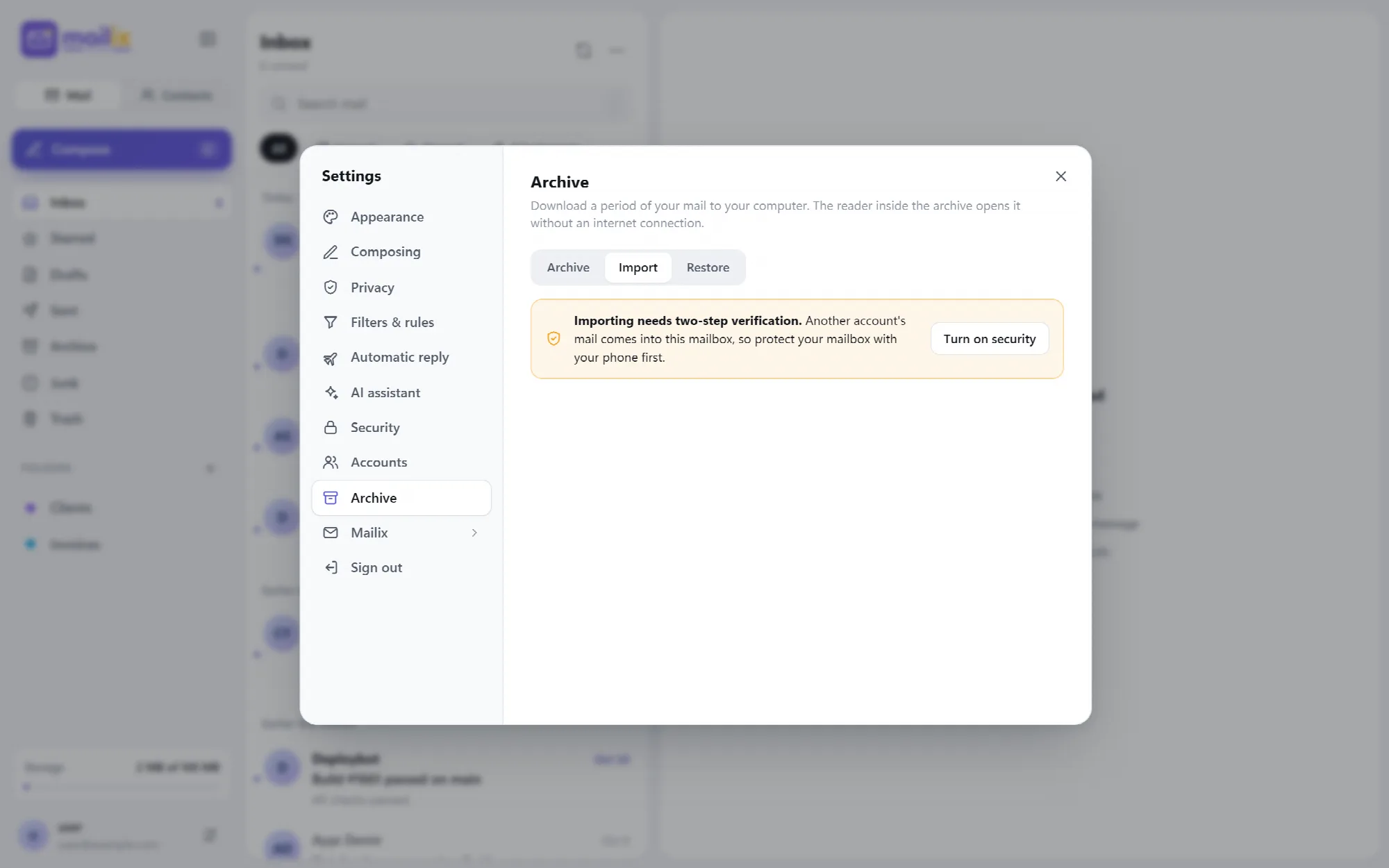
- Two-step verification. Import works only on mailboxes with 2FA, and the current code from the phone is asked when an import starts.
- Password not saved. The old account's password is used only while the import runs. It stays encrypted in the session, and is asked again in a new session.
- Internet servers only. Local and private network addresses are refused, and only ports 993 and 143 with a verified certificate are allowed.
- Limited tries. Test connection can be used 10 times an hour per mailbox.
- History. Starting, finishing and removing an import are recorded with the server name and counts, without addresses or passwords.
View the interface example
A Practical Move From Gmail
- Turn on two-step verification in Mailix.
- Create an app password in the Google account under 2-Step Verification.
- In Settings → Archive → Import, choose From another account and Gmail, and run Test connection.
- Untick folders you do not need and check the free quota.
- Start the import with the code from your phone and keep the page open.
- When the list says Done, open the Imported folder and check a few messages.
Questions About Import
Do I need my Gmail password?
No. Gmail needs a 16-letter app password from the Google account, which only works when 2-Step Verification is on in Google. Mailix does not save it.
Will the same message come in twice?
No. A message already in the target folder is skipped, also when the import is run again or continued.
Does the import keep syncing new mail?
No. Import is a one-time move. Mail that arrives at the old account later is not copied.
Can I import from Outlook.com or Microsoft 365?
Not directly. Microsoft accounts need a sign-in method that is not supported yet, and Outlook .pst files cannot be imported.
Continue Your Mailix Workflow
Reviewed against Mailix 1.2.3 · Last updated 29 October 2026