

READ, WRITE AND ORGANIZE WITHOUT FRICTION
Mailix gives every mailbox a three-pane inbox with conversations, search, filters and bulk actions, a compose window with rich text, attachments, signatures, autosaved drafts and undo send, CardDAV contacts and several accounts side by side with an All inboxes view.
Inbox and Conversations
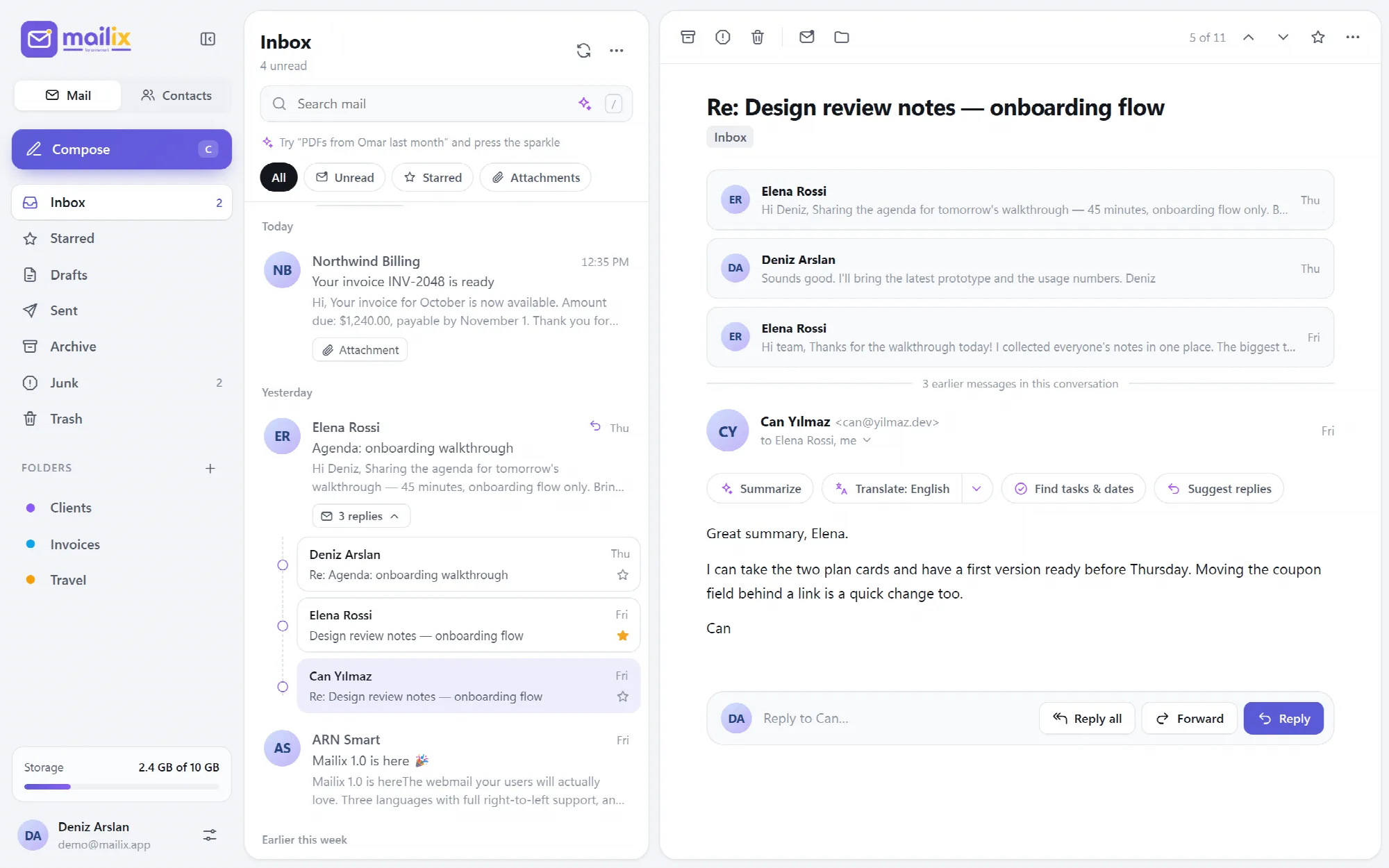
Follow a whole conversation from one row.
The message list groups mail by date: Today, Yesterday, Earlier this week, Earlier this month and Older. Each row shows the sender, time, subject, star, attachment mark and the first line of the message.
Conversations. Replies are grouped under the first message of a conversation, and a "{n} replies" button opens them. Your own replies from Sent appear in the conversation too, and conversations are sorted by their latest message.
Earlier messages. An opened message shows the earlier messages of its conversation as cards above it.
Reading tools. An open message offers Print, Download original (.eml) and, when the sender provides a link, Unsubscribe, which opens that link in a new tab. Older Turkish, Arabic and other character sets are decoded, and a quick reply box sits under the message. Messages larger than 30 MB cannot be opened in webmail.
Quick actions. Hovering a row offers Archive, Delete, Mark as read and Star. Selected messages get a bulk bar with the same actions and Move to.
Endless scrolling. The next page loads as the list scrolls, with 25, 50 or 100 messages per page.
Conversation grouping can be turned off in Settings → Appearance.

View the interface example
Search and Filters
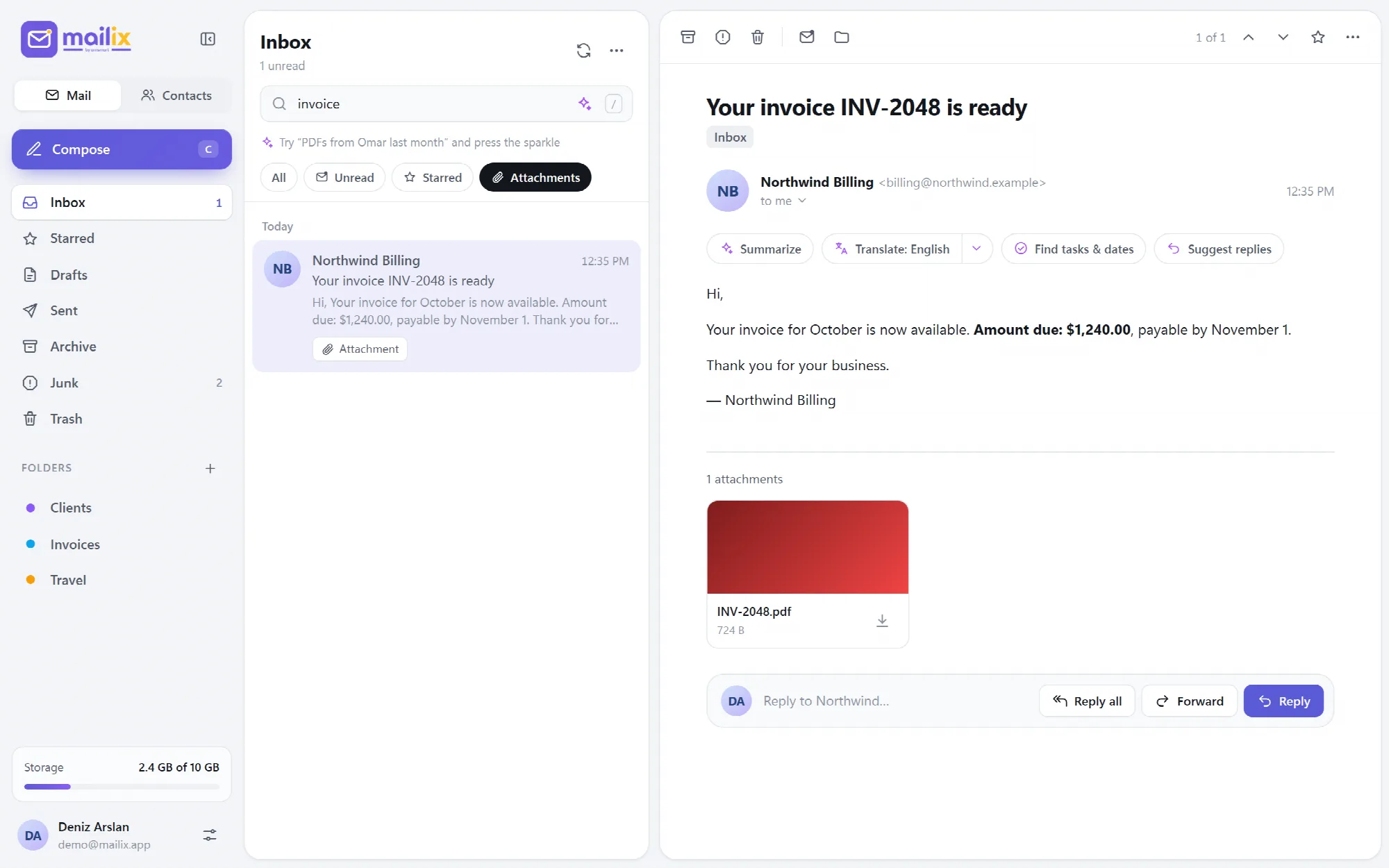
Find a message by sender, subject or text.
Search mail looks up words in the sender, recipients, subject and message text of the open folder. Filters narrow the list further:
| Filter | Shows |
|---|---|
| All | Every message in the folder |
| Unread | Messages not yet read |
| Starred | Messages marked with a star |
| Attachments | Messages that carry files |
With the AI assistant on, a sentence such as "PDFs from Omar last month" can be turned into search words and a filter. See AI Assistant
View the interface example
Compose and Undo Send
Write rich messages and take them back in time.
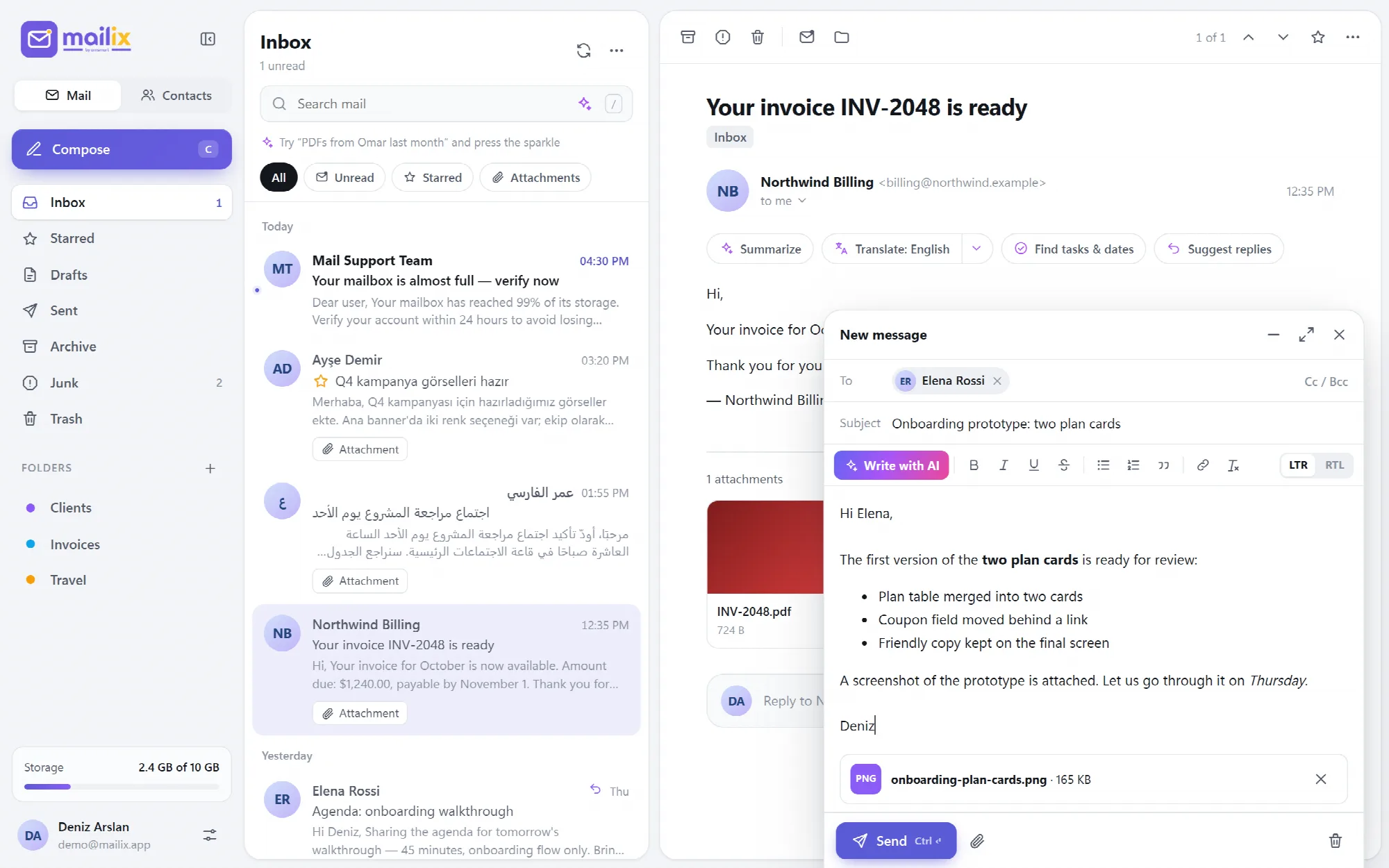
The compose window offers bold, italic, underline, strikethrough, lists, quotes, links and Clear formatting, with LTR and RTL buttons for the writing direction.
- Recipients. Suggestions appear while typing, from the address book and from people you have written to.
- Attachments. Drag files onto the window or choose Attach files, up to 25 MB by default.
- Signature and name. A formatted signature and the display name are set in Settings → Composing.
- Drafts. The message is saved to Drafts every 15 seconds while it changes, and when the window closes.
- Undo send. For 5, 10 or 20 seconds after Send, an Undo button brings the message back exactly as it was.
- Replies and forwards. Quotes keep the original formatting, and forwarded attachments are carried over on the server without downloading them.
Pasted text is cleaned to basic formatting, so it cannot bring scripts or hidden styles. Ctrl+Enter sends.

View the interface example
Contacts With CardDAV
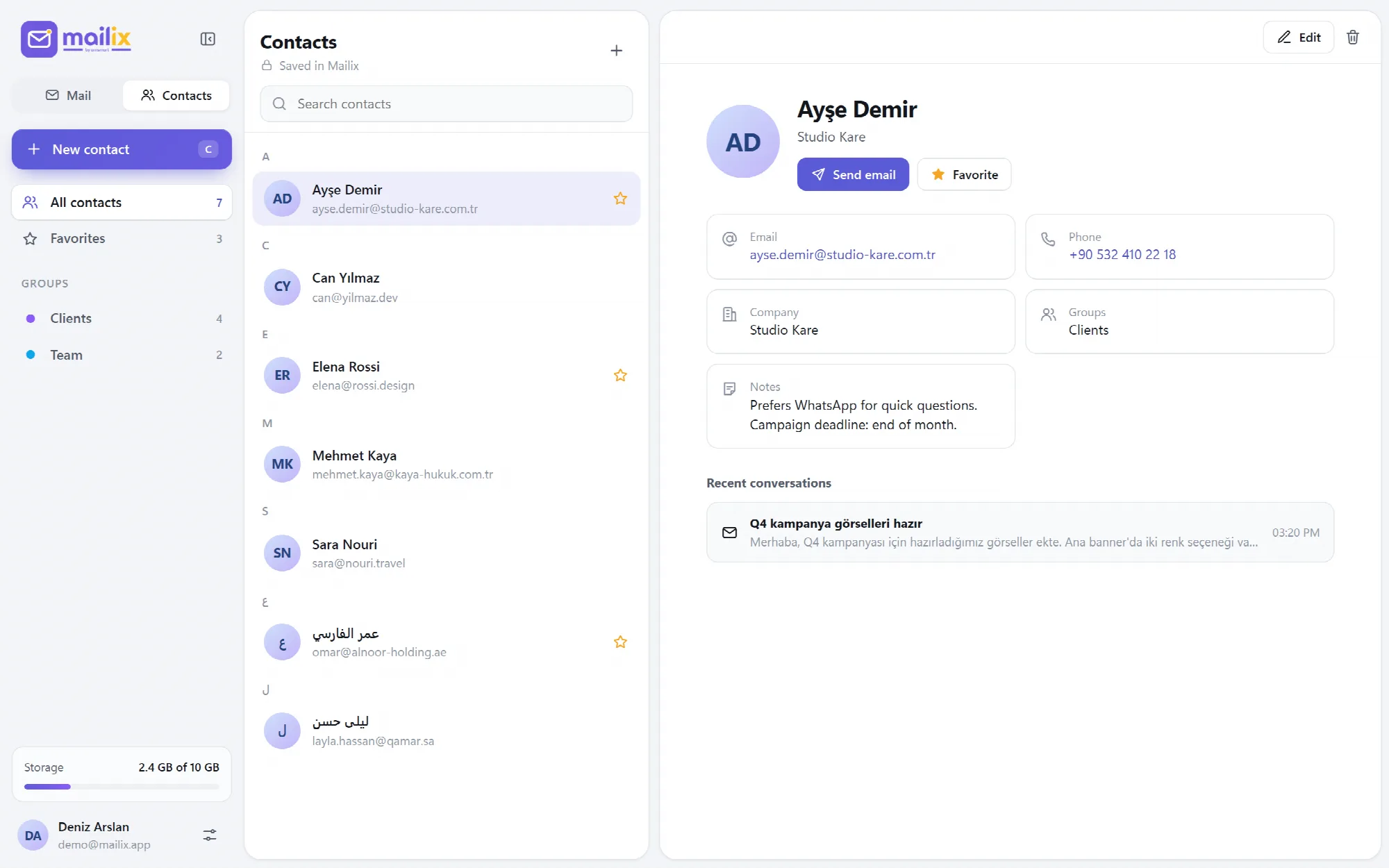
Keep one address book for webmail, phone and computer.
Contacts are stored in the server's CardDAV address book, the standard that phones and mail programs use to sync contacts. Contacts saved in Mailix appear on devices that use the same address book, and the other way round.
Contact cards. Name, several email addresses and phone numbers, company, groups, notes and the last conversations with that person.
Favorites and groups. Favorites and groups appear in the sidebar with their counts. Favorites are stored in the card, so other programs see them too.
Safe editing. Information Mailix does not edit, such as photos and postal addresses, stays in the card.
When the server has no CardDAV address book, contacts are kept in Mailix's own storage. Importing or exporting vCard files is not part of Mailix.

View the interface example
Several Accounts and All Inboxes
Work with several mailboxes in one window.
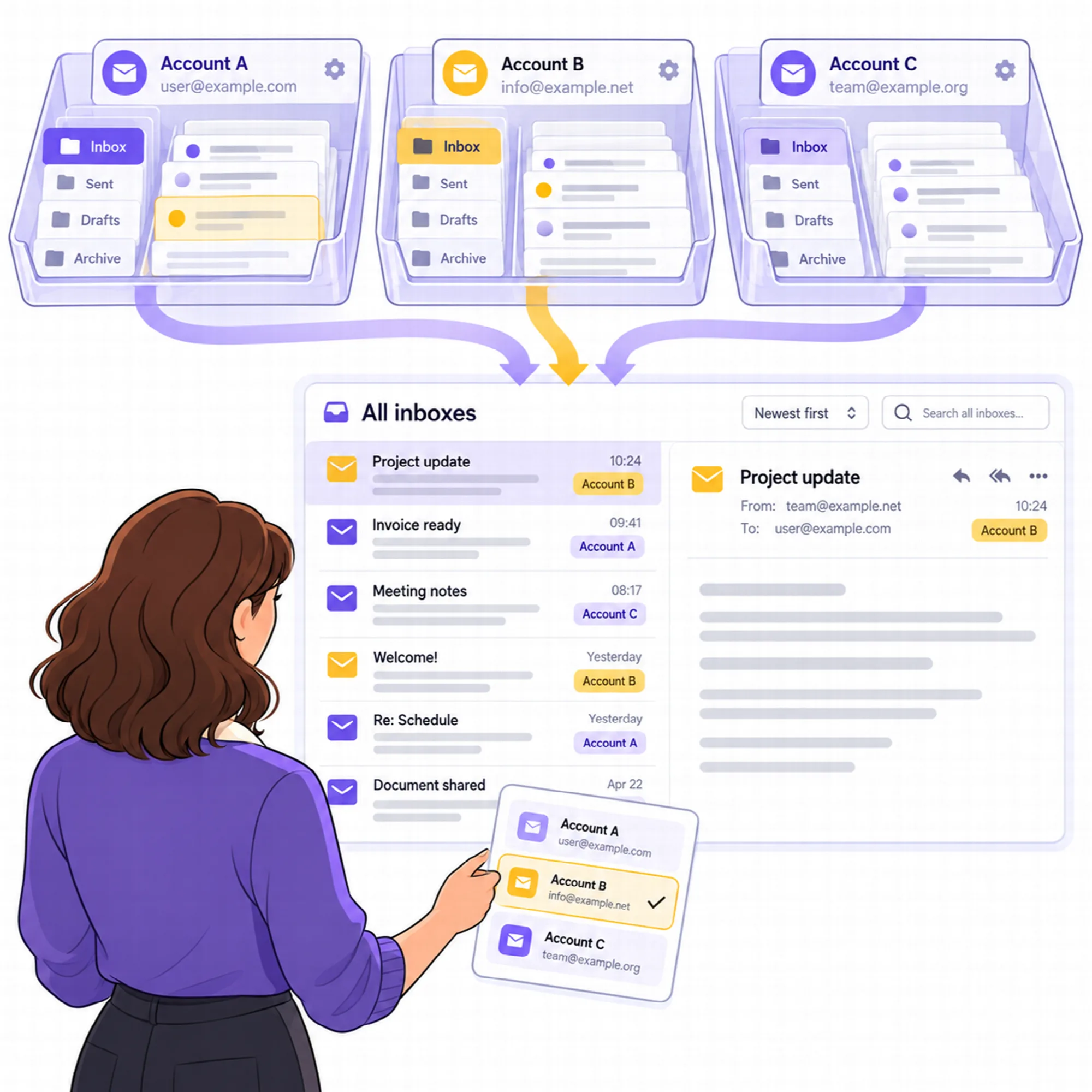
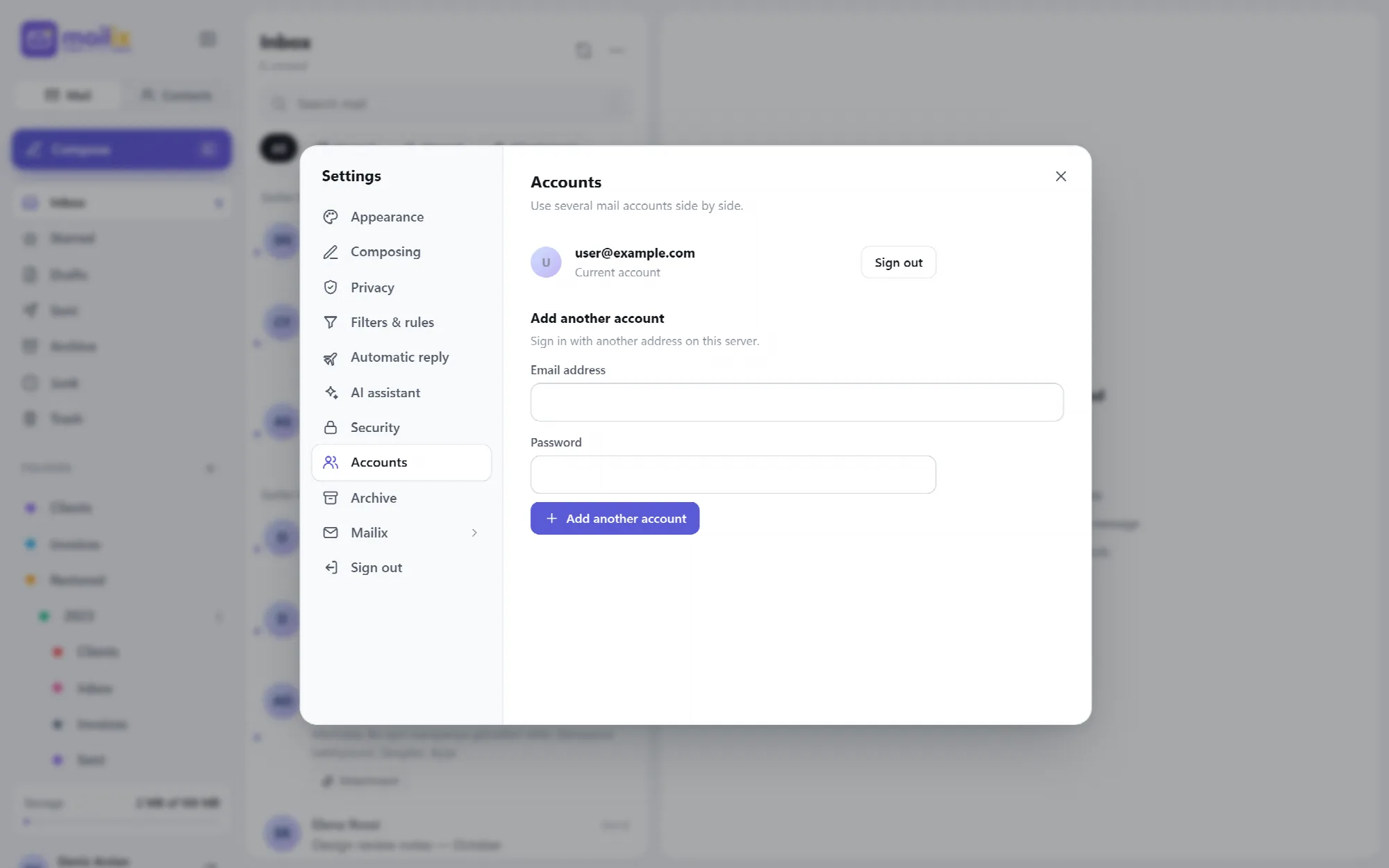
Add another account signs in a second or third mailbox of the same server; the accounts already open stay open. The account menu switches between them, and each account keeps its own settings and folders.
All inboxes. With several accounts open, All inboxes merges their inboxes by date into one list. Opening a message from another account switches to that account.
Protected accounts. A mailbox with two-step verification asks for its code when it is added. See Security
View the interface example
Folders and Keyboard Shortcuts
Organize mail and move faster with the keyboard.
Standard folders appear in a fixed order and in the interface language: Inbox, Drafts, Sent, Archive, Junk and Trash. Custom folders can be created, renamed and deleted, and subfolders are indented.
| Key | Action |
|---|---|
| C | Compose |
| / | Search mail |
| J / K | Next or previous message |
| R, A, F | Reply, Reply all, Forward |
| E, # | Archive, Delete |
| Ctrl+K | Command palette |
| ? | All keyboard shortcuts |
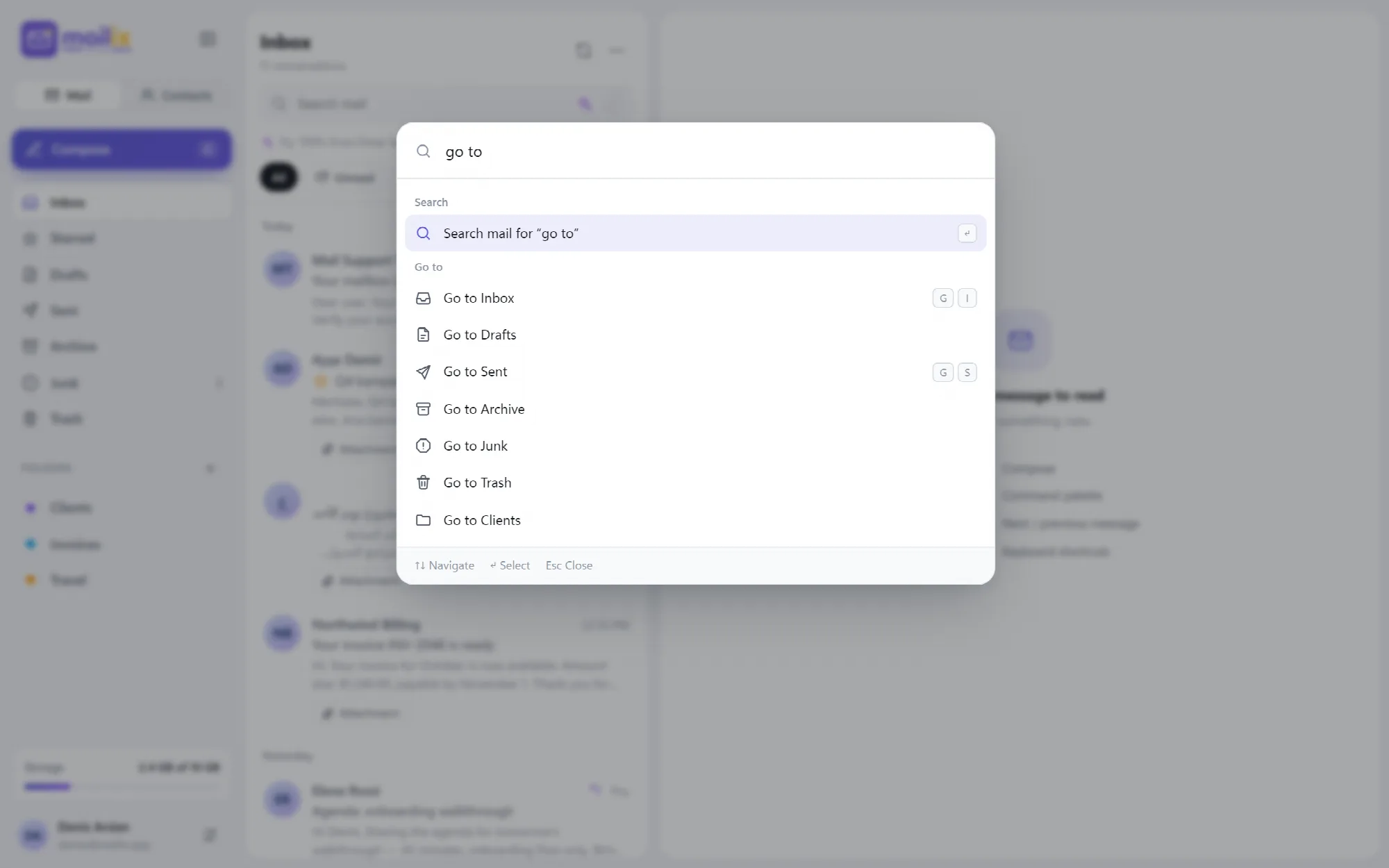
The command palette searches every action, folder and preference, and offers Search mail for whatever is typed.
Delete moves a message to Trash; deleting inside Trash removes it permanently.
View the interface example
A Practical Daily Routine
- Open the Inbox and filter by Unread.
- Read a conversation and answer it with the quick reply box.
- Archive or star messages with E and S as you go.
- Search mail when you need an older message.
- Close the day with All inboxes if you look after several mailboxes.
Questions About Mail
Do my Mailix contacts sync with my phone?
Yes, when the server has a CardDAV address book, which cPanel provides. A phone set up with the same CardDAV account shows the same contacts.
Can I take back a sent message?
Yes, within the undo time you choose in Settings → Composing: 5, 10 or 20 seconds. After that, the message has left the server.
How large can attachments be?
By default, one message can carry up to 25 MB of attachments. The server administrator sets this limit.
Can I search all accounts at once?
All inboxes shows the inboxes of every open account in one list. Search runs in the open folder of the current account.
Continue Your Mailix Workflow
Reviewed against Mailix 1.2.3 · Last updated 29 October 2026