

Security
PROTECT EVERY SIGN-IN AND EVERY MESSAGE
Mailix protects webmail sign-in with two-step verification from an authenticator app, recovery codes and trusted devices, lets a company require it for every mailbox, lists signed-in devices and shows HTML mail in a locked frame with external images blocked and phishing warnings.
Two-Step Verification
Ask for a code from the phone after the password.
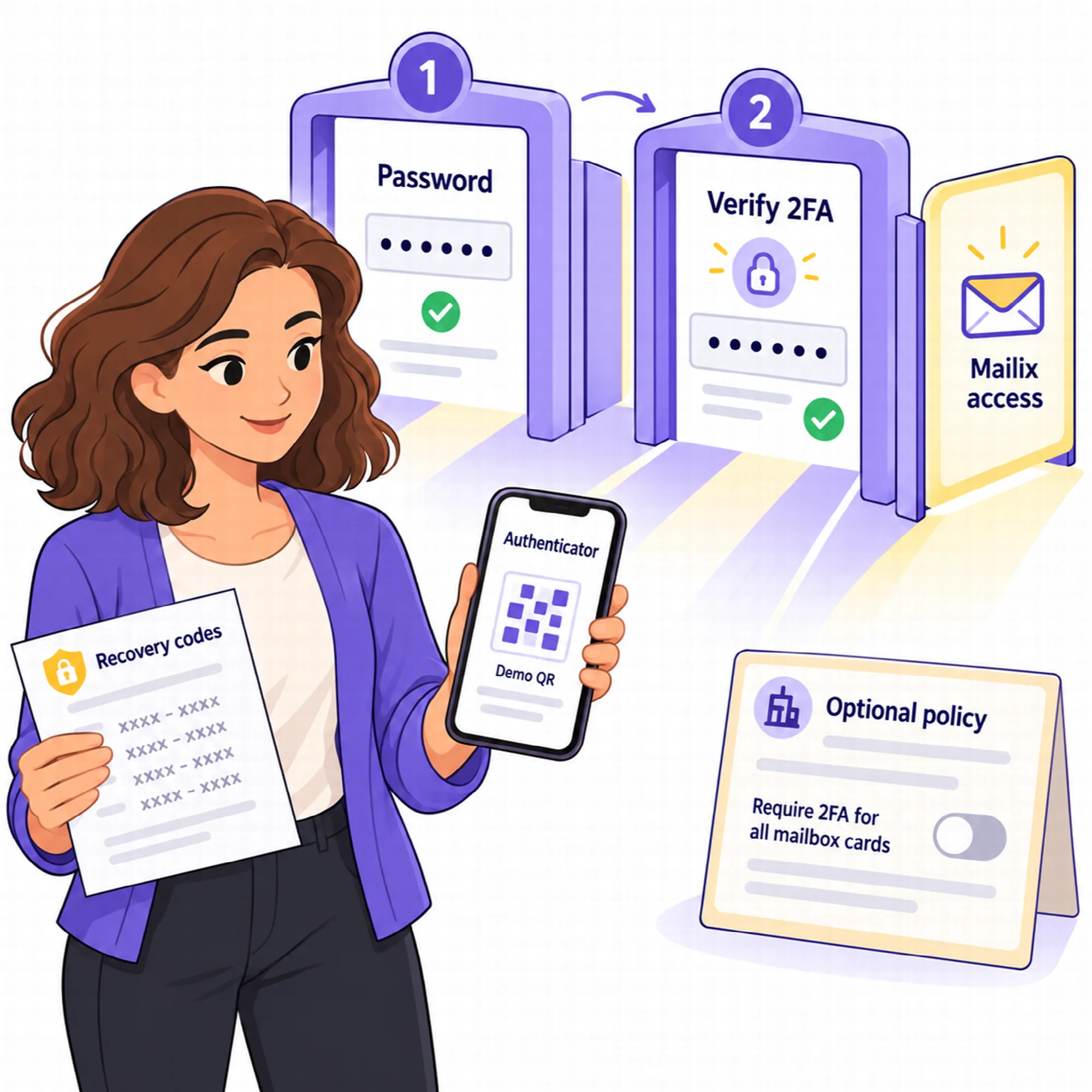
Two-step verification (2FA) adds a second check to the Mailix sign-in: after the password, Mailix asks for a six-digit code that an authenticator app on the phone creates every 30 seconds. Someone who learns the password still cannot open the mail.
Setup takes about a minute in Settings → Security:
- Scan the QR code with an authenticator app such as Google Authenticator, Microsoft Authenticator, 1Password or Authy.
- Enter the code from the app to confirm the setup.
- Save the 10 single-use recovery codes by copying, downloading or printing them.
Suggested after the first sign-in. Mailboxes without 2FA see Protect your account after signing in. Not now postpones the suggestion for 14 days.
Recovery codes. Each code works once and replaces the phone when it is lost. New codes can be created at any time.
Remember this device for 30 days. A trusted browser skips the code for 30 days. Trusted devices are listed with their last use and can be removed one by one or all at once.
Attempt limits. Five wrong codes from one network pause code entry for 15 minutes, and 30 wrong codes from all networks pause the mailbox for 15 minutes. The counters start only after a correct password, so strangers cannot lock a mailbox.
2FA also works when Mailix opens from cPanel Webmail: the password is already checked there, and Mailix asks only for the code.
View the interface example

Company Policy
Require two-step verification for every mailbox of a company.
The cPanel account owner and the company's managers see a Company policy section in Settings → Security.
- Require two-step verification for every mailbox. Mailboxes without it are taken to setup at their next Mailix sign-in, without a Not now option, and cannot turn it off.
- Reset for a mailbox. For someone who lost both their phone and their recovery codes. The mailbox sets 2FA up again at its next sign-in.
The policy is off by default and is the company's choice. Mail apps such as Outlook, Apple Mail, Thunderbird and phone mail apps connect with IMAP and SMTP and keep signing in with the password; 2FA protects the Mailix sign-in.
View the interface example

Signed-In Devices and QR Sign-In
See where the mailbox is open and sign out the rest.
Signed-in devices lists every browser where the mailbox is open in Mailix, with the browser and system, the IP address and the last activity. Any other device can be signed out, or all of them at once with Sign out everywhere else.
Sign out from cPanel Webmail. In cPanel Webmail, Sign out also ends the Webmail session and returns to cPanel's own sign-in page, so the open Webmail session cannot reopen Mailix on a shared computer. With several accounts open, signing out of one account leaves the others open.
On standalone installations, a new device can also sign in with a QR code that a signed-in device approves:
| New device | How it signs in |
|---|---|
| Computer | Shows a QR code on the sign-in screen; a signed-in phone scans it and approves |
| Phone | Scans a code shown in Settings → Security → Add a phone on a signed-in computer |
The approving device chooses a two-digit number shown on the new device from three numbers, and a wrong choice cancels the request. A code is valid for 2 minutes and works once.
QR sign-in is not available in cPanel Webmail, because every Webmail address belongs to one Webmail session. There, new devices sign in to cPanel Webmail with the password.

View the interface example

Safe Reading
Open any message without letting it run code.
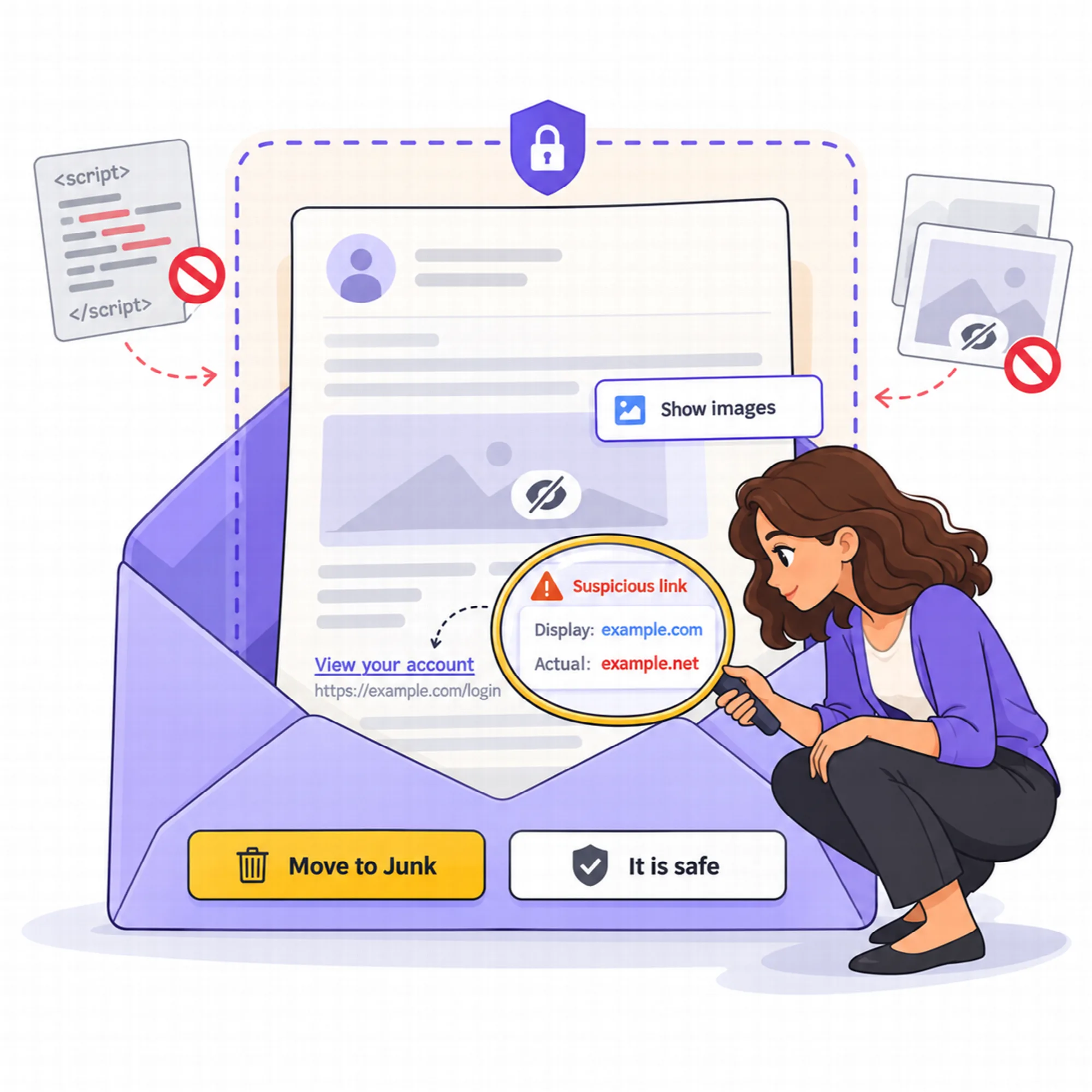
HTML mail is cleaned on the server against an allow-list before it is shown. Scripts, frames, forms, embedded objects and event attributes are removed, CSS is filtered and links keep only safe addresses.
Locked frame. The cleaned message is shown in a sandboxed frame that runs no scripts, under a strict Content Security Policy (CSP), so it cannot touch the Mailix page.
External images. Images from the internet are hidden until the user chooses Show images or Always show from this sender, because loading them can tell the sender that the message was opened.
Attachments. Only images and PDF files open in the browser; every other file downloads.
View the interface example

Phishing Warnings
Warn before the user clicks a dangerous link.
Mailix checks every opened message on the server, without AI, and shows a red warning when parts of the message do not match its sender.
- Strong signals: a display name that names another domain or a known brand, a link whose text shows a different domain than its real target, or failed SPF, DKIM or DMARC checks.
- Weak signals: a Reply-To address on another domain, or words that ask for passwords together with words that create urgency, in English, Turkish or Arabic.
One strong signal or two weak signals mark a message as suspicious. The warning offers Move to Junk and It's safe. With the AI assistant on, the AI can also explain why the message may be dangerous. See AI Assistant
View the interface example

Protected Sessions and Data
Keep passwords and keys unreadable on the server.
- The mail password is encrypted in the server session with AES-256-GCM. The key lives only in a separate browser cookie, so the session file alone reveals nothing.
- Every change carries a CSRF token, a check that the request really came from the Mailix page.
- Failed sign-ins are limited per IP address and per mailbox.
- The 2FA secret and the company AI key are stored encrypted; recovery codes are stored only as one-way hashes.
- Mailix uses no tracking or advertising cookies.
- Settings → Mailix holds About, Terms of use, Privacy policy, AI notice and Third-party software in English, Turkish and Arabic. The terms cover archives, imports and AI replies, and the privacy policy says that an imported account's password is never saved and that imported files are read in the browser.
Server administrators should back up the Mailix storage together with its key files, because the 2FA secrets cannot be read without them.

A Practical Security Setup
- Turn on two-step verification for your own mailbox and save the recovery codes.
- Ask the company's cPanel account owner to require 2FA for every mailbox.
- Check Signed-in devices after using a shared computer and sign out what you do not recognize.
- Keep Ask first for external images and add trusted senders only when needed.
- Move suspicious messages to Junk instead of opening their links.
Questions About Security
Does two-step verification protect Outlook or my phone's mail app?
No. Mail apps connect with IMAP and SMTP and sign in with the password. Two-step verification protects signing in to Mailix.
What happens if I lose my phone?
Sign in with one of your recovery codes and set the authenticator app up again. If the codes are lost too, the cPanel account owner can reset two-step verification for your mailbox.
Can a company require two-step verification?
Yes. The cPanel account owner or a company manager can turn on the company policy, and every mailbox without 2FA must set it up at its next sign-in.
Does Mailix load images in my mail automatically?
No. External images stay hidden until you allow them for one message or for a trusted sender, unless you choose Always show in Settings → Privacy.
Continue Your Mailix Workflow
Reviewed against Mailix 1.2.3 · Last updated 29 October 2026