

REVIEW MEDIA CHANGES BEFORE THEY BECOME PART OF THE SITE
AI Media
Vendix AI Media requests suggested filenames, titles, slugs and image alt text for WordPress media library items through the shared ARN Smart AI connection, lets editors review and apply selected fields on one AI Media page, and records renames so they can be restored. When licensed WebPix manages media on the site, the page links to WebPix Media AI instead.
Media Suggestions
Give media records clearer descriptions.
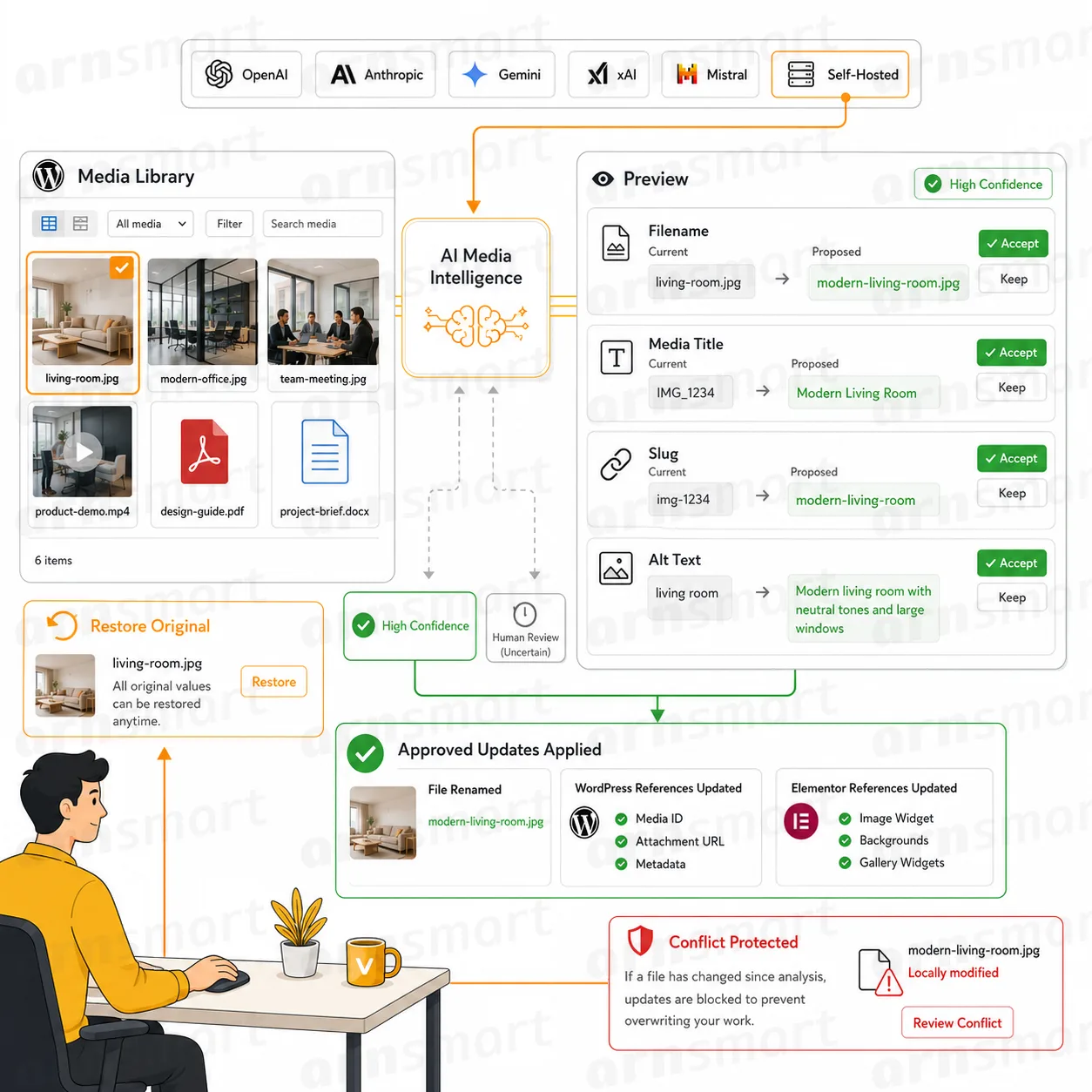
Request suggested filenames, titles, slugs and image alt text through the configured provider workflow. Images go to an image-capable model; PDFs, video and audio files are described from their context. Review the proposed values against the actual image and the page where it will be used.
Vendix → AI Media is one page with three tabs: General, Media Library and AI Connection. AI Media is off by default; turn on "Enable Media Intelligence admin and processing hooks" in the General tab to use the library.
Find what needs work. Search the Media Library tab and filter it by file type or by status: missing alt text, generic filenames such as IMG_1234.jpg or screenshot-1.png, and items already changed by Vendix.
The media table presents the fields being considered rather than treating an AI response as a reason to overwrite every value.
Descriptions remain editorial decisions. A useful suggestion should accurately describe the media and fit its role in the content.
Review & Apply
Choose the changes that belong together.
Preview an individual item or prepare supported batch work: select several items, generate their previews together and apply the selected ones. Select the fields to apply and edit proposed values before committing them.
Replace words. Enter an old and a new text and preview the replacement across the selected items before applying it.
Optional automatic empty-alt handling has its own setting and conditions; it is separate from reviewing a broader filename/title change. It is off by default; when on, it prepares missing alt text for new images, skips decorative images and keeps low-confidence suggestions in the review queue. Do not assume an enabled AI connection means every suggestion is applied.
Automatic alt text also leaves out the photos and videos customers attach to product reviews; those files are never sent to the AI service by this step. See Photo & Video Reviews.
Keep the application result visible so the team can distinguish a proposed value from one already stored.
Rename & Restore
Treat filenames as connected site information.
A physical rename is recorded, with supported references updated through the media transaction. Restoration uses recorded values and conflict checks rather than assuming no other edit has happened since. "Restore Original" returns the filename, title, slug and alt text recorded before the Vendix change.
Review the affected media and its page output after a rename. A filename change is different from changing only the visible title or alt field.
When licensed WebPix is active and manages media on the site, the AI Media page shows only a link to WebPix Media AI, without tabs, switches or the media list. WebPix then writes alt text, suggests titles and filenames and handles reversible renames. That avoids two independent tools competing over the same media changes, and changes Vendix made earlier can be undone in WebPix too.
AI Connection
Configure provider access once for the supported ARN tools.
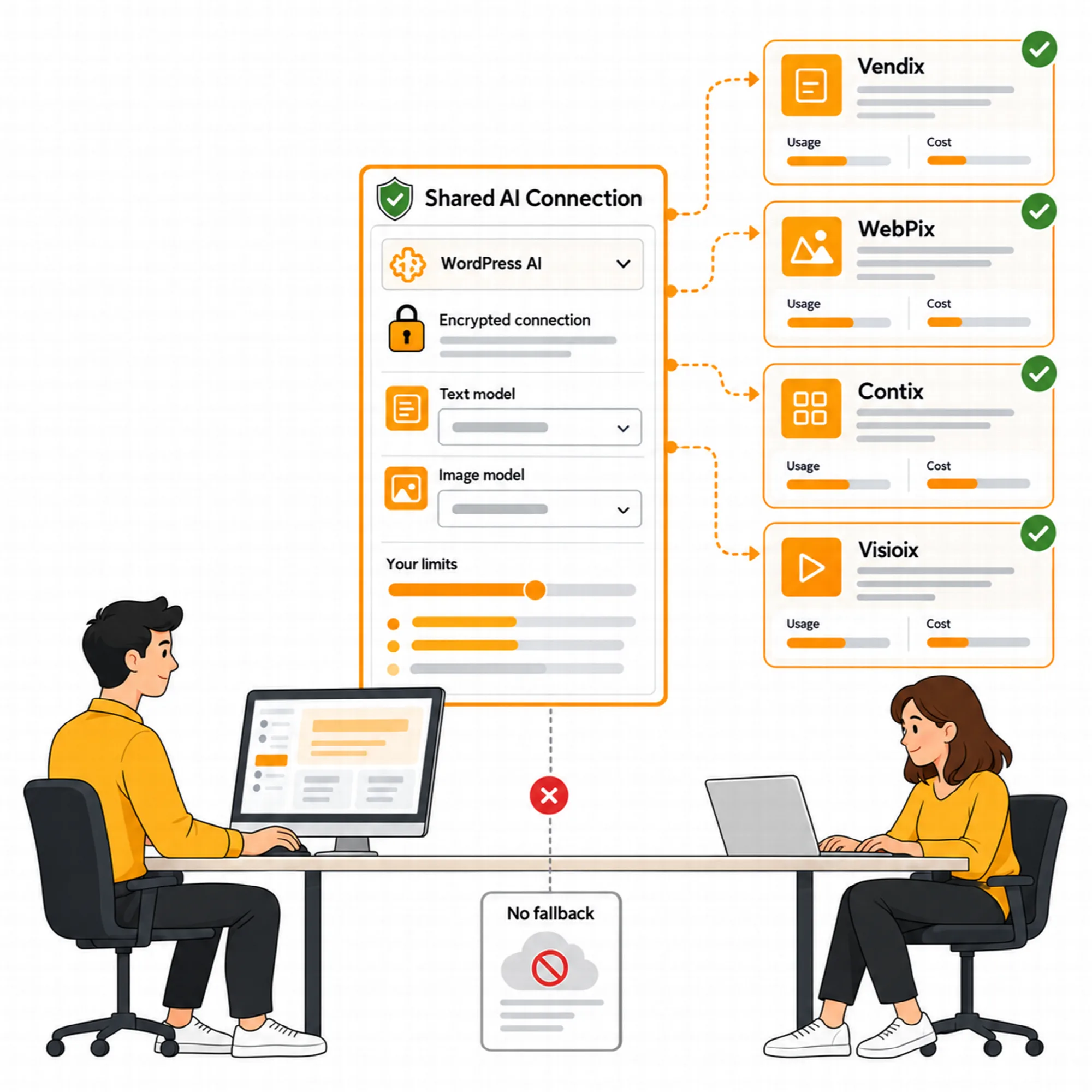
Use the shared ARN Smart AI connection for the chosen provider and model. It is set once in Settings → ARN Center for every ARN Pro product, and the AI Connection tab shows its status with a link there. Your own credentials and provider usage govern the requests; AI service costs are separate from the Vendix license.
- WordPress AI engine (default). Uses the providers connected in WordPress Connectors; no key is copied into Vendix.
- ARN Smart AI engine. Connects with your own provider key and an exact model ID.
- Models, usage and limits. Text and image models, usage records and limits are set on the same page.
Vendix uses the same connection for Search Intelligence suggestions. Review available connection, limit and usage information before starting a larger batch. Keep the provider configuration distinct from the decision to apply a media suggestion.
A Practical Media Review
Filter the Media Library tab by missing alt text or generic filenames, select a representative item, preview the proposed fields, correct any inaccurate description and apply only the intended changes. Review its public use before moving to batch work.
Questions About AI Media
Why does Vendix direct me to WebPix?
When licensed WebPix is active and manages media, the AI Media page shows only a link to WebPix Media AI. WebPix then handles media suggestions and reversible renames, including changes Vendix made earlier.
Is AI Media part of the Free edition?
Yes. The Free edition has a review-first AI Media page with the same General, Media Library and AI Connection tabs. It connects through Settings → ARN Free AI instead of ARN Center.
Is AI usage included in the license price?
The workflow uses your own configured provider connection. Provider charges and limits are separate.
Are suggestions applied automatically?
No. Suggestions are previewed, and the fields to apply are selected and editable before they are committed. Optional automatic empty-alt handling for new images has its own setting, is off by default and keeps low-confidence suggestions for review.
Can a renamed file be restored?
Yes. A physical rename is recorded with its supported reference updates, and restoration uses the recorded values with conflict checks.
Continue Building
Reviewed against Vendix Pro 1.11.0 · Last updated 20 October 2026