

SELL SETS AND SHORTEN THE WAY TO CHECKOUT
Bundles & Quick Buy
Vendix adds a "Vendix Bundle" product type to WooCommerce that sells several products together at a fixed or discounted price, with stock taken from the products inside. Quick Buy Buttons add Buy now, WhatsApp, marketplace and no-reload add to cart buttons. Both modules are off until turned on under Vendix → WooCommerce.
Product Bundles
Sell several products together as one product.
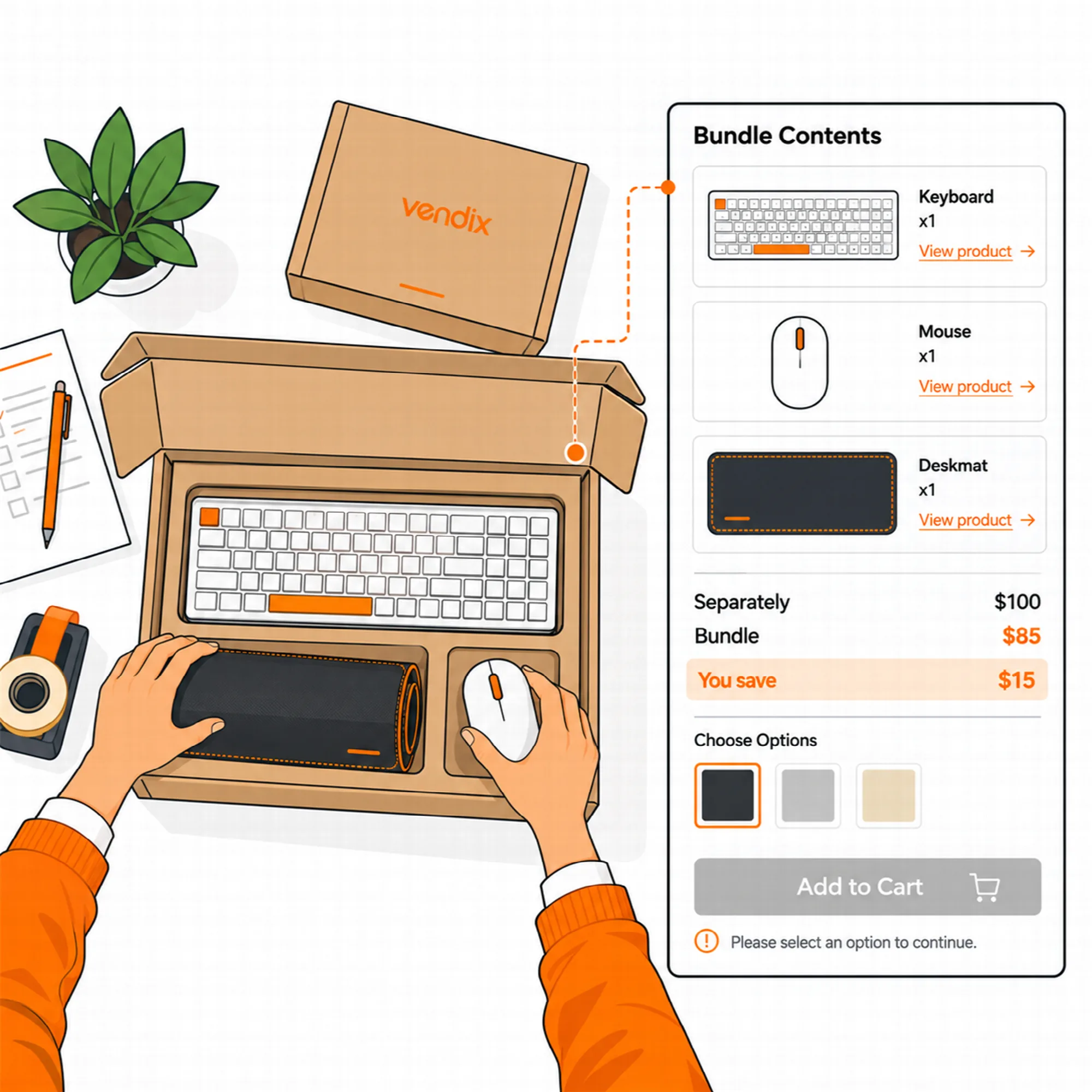
A "Vendix Bundle" is a WooCommerce product type with its own page, image, categories and SEO. Its "Bundle contents" tab lists the products inside: search simple or variable products by name or SKU, set a quantity for each and drag the rows into order.
- Variable products: the customer chooses the variation, such as size or color, on the bundle page, or you fix one variation for the bundle.
- Bundle page: each product appears with its image, quantity, name, its fixed or chosen variation and a "View product" link; the add to cart button stays off until every choice is made.
- No accidental single buys: the products inside a bundle carry only "View product", so a single product is not bought from the bundle page by mistake.
A bundle holds up to 20 products, each with a quantity of up to 99. Turn on "Bundles: the "Vendix Bundle" product type" on Vendix → WooCommerce → Product Bundles; while the switch is off, saved bundles act as simple products, so set them to draft before turning bundles off.
Bundle Price & Savings
Show the saving before the customer decides.
A bundle has either a fixed price, entered on the General tab, or a discount from the total of its products as a percentage or an amount. With a discount, the bundle price follows the products' prices by itself.
"Products on sale" decides whether that total uses the products' sale prices or their regular prices. After saving, the tab shows a summary of the products' total, the bundle price, the saving and the stock the products allow.
On product pages and product cards, a savings line reads "Separately: X · Bundle: Y · You save: Z (n%)". It is left out while the bundle does not cost less than its products.
With a supported multi-currency plugin, an amount discount follows the currency the customer sees, while amounts stay saved in the store currency; see Multi-Currency.
Bundle Stock & Orders
Keep component stock right with every sale.
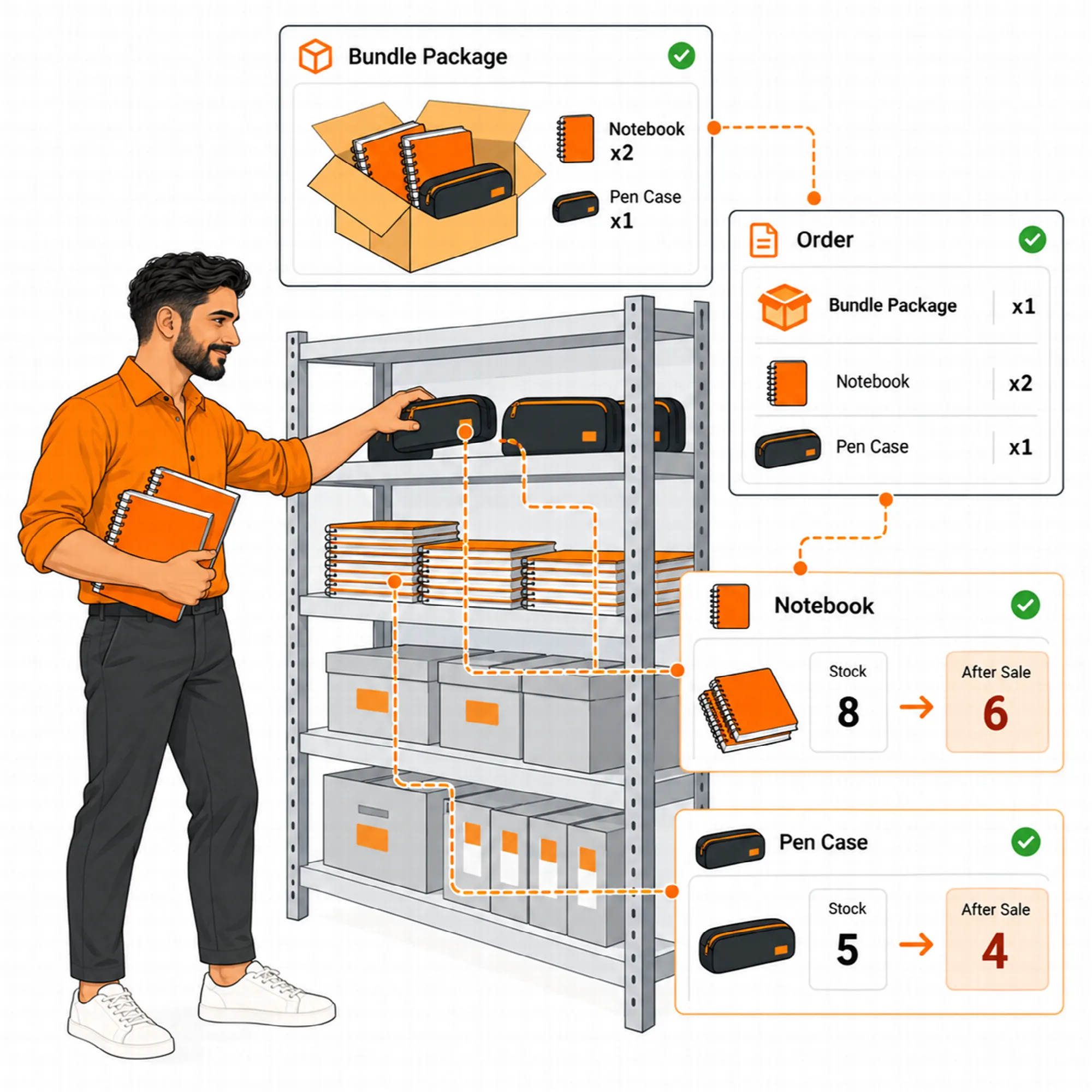
A bundle has no stock of its own. It can be sold while every product inside has enough stock, and it becomes out of stock when one of them runs out.
- Stock changes: when WooCommerce reduces an order's stock, each product goes down by its bundle quantity; cancelled or failed orders bring the stock back, and refunds with "Restock refunded items" restock it. While an order waits for payment, the components are held like other products under WooCommerce's "Hold stock" setting.
- No backorders: bundles never take backorders, and out-of-stock combinations cannot be chosen.
- One cart line: the cart shows the bundle as one line with its products listed under it; the order screen, e-mails, account pages and invoices that print item details list them too.
- Shipping: weight and size come from the products (their total) or from the bundle's own Shipping tab, with its own shipping class.
- Coupons: coupons work on bundles unless the bundle turns them off on its "Bundle contents" tab or "Coupons do not apply to bundles anywhere on the site" is on.
Bundles support the WooCommerce cart and checkout blocks and the WooCommerce order tables (HPOS).
Bundle Suggestions
Point shoppers to a bundle without changing their cart.
Three switches under "Leading customers to bundles" show bundles where they help:
- "This product is in these bundles": cards on the pages of products that are in a bundle, with the bundle price, the saving, "View bundle" and, when there is nothing to choose, "Add bundle to cart".
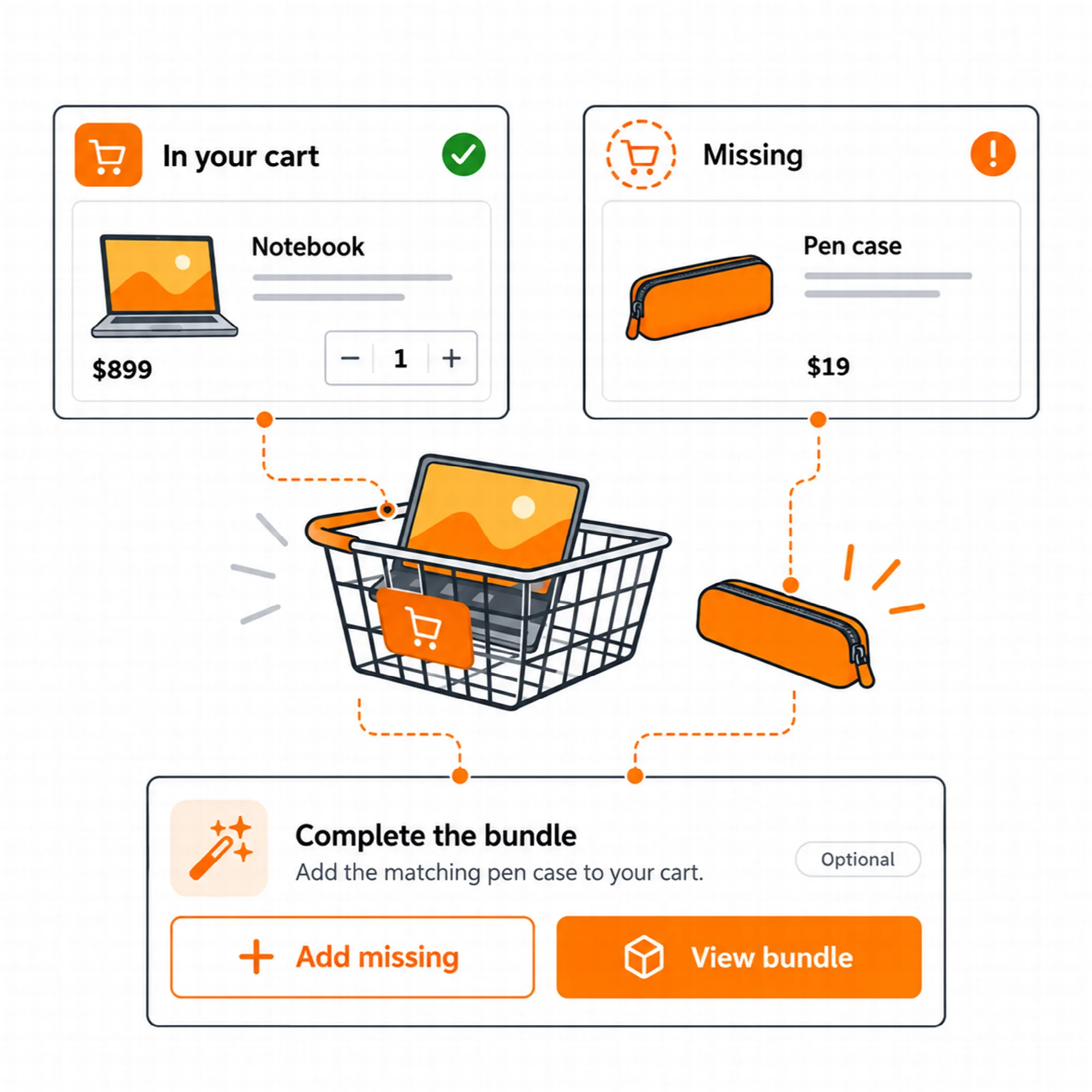
- "Complete the bundle": when some products of a bundle are in the cart, each one reads "In your cart" or "Missing", and "Add the missing products" adds the missing ones at once.
- "Turn into the bundle": when every product of a bundle is in the cart and the bundle costs less, one button replaces them with the bundle and shows the saving.
The cart never changes by itself: the customer chooses. Each button sends one request, and if a step fails the cart goes back to how it was. The offers appear below the classic cart and after the cart block.
A missing product that needs a choice, such as a size, is chosen on its own page before it can be added.
Quick Buy Buttons
Offer faster ways to buy or ask.
Quick Buy Buttons add up to five buttons to products and bundles. Turn on the module on Vendix → WooCommerce → Quick Buy Buttons, then tick the buttons that every product shows by default:
| Button | What it does |
|---|---|
| Add to cart without reloading | Adds the product and updates the header cart at once |
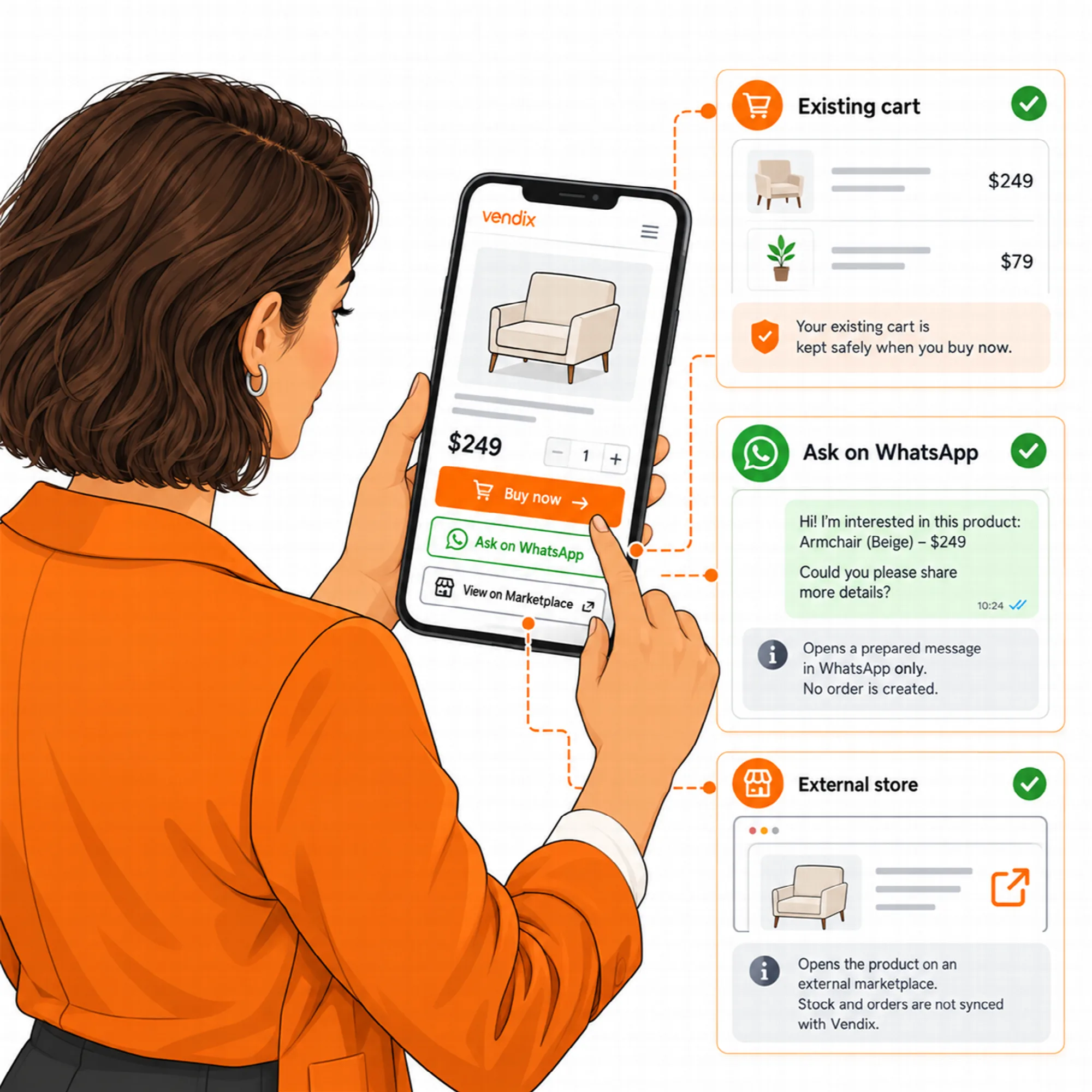
| Buy now | Sends only this product or bundle to the checkout; the rest of the cart is kept aside and comes back after the order, or when the customer returns to the cart without paying |
| Ask on WhatsApp | Opens WhatsApp with a question about the product |
| Order on WhatsApp | Opens WhatsApp with the chosen options, quantity and price |
| Marketplace buttons | Links to the same product on other stores, such as Amazon, Trendyol or Noon; up to eight per product, each with its own text and optional logo |
Both WhatsApp buttons only open WhatsApp with a ready message; no order or other record is created in the store. Messages go to the WhatsApp number in Company Data, and the buttons stay hidden until one is added. The message templates accept {product}, {variation}, {quantity}, {price} and {link}.
Each product can show or hide each button on its own Quick Buy Buttons tab. With the product card switch on, Buy now (for products without options) and Ask on WhatsApp also appear on product cards. Marketplace links need a full web address that starts with https:// and carry rel="nofollow noopener".
Store Widgets for Elementor
Place bundle blocks and buy buttons anywhere on a page.
Three WooCommerce widgets come with these modules and appear in Elementor while their module is on:
| Widget | What it shows |
|---|---|
| ARN Bundle Contents | The products of a bundle as a list, a grid or a carousel, with the savings line and the bundle's buttons |
| ARN Product in Bundles | Cards of the bundles a product is in, with price, saving, "View bundle" and "Add bundle to cart" when there is nothing to choose |
| ARN Smart Product Buttons | The quick buy buttons of the current product or a chosen one; a button the product hides stays hidden |
On product pages built without Elementor, the same blocks are placed through WooCommerce hooks. In the Elementor editor, the bundle widgets show a sample bundle when there is nothing to show; visitors then see nothing. The full collection is on Elementor Widgets.
A Practical Bundle Setup
- Turn on Product Bundles and create a product with the "Vendix Bundle" type.
- Add the products, set their quantities and decide which variable products the customer chooses.
- Choose a fixed price or a discount, the sale price basis, shipping and coupons, then check the summary after saving.
- Turn on the bundle suggestions you want and test a cart with part of the bundle and with all of it.
- Add the WhatsApp number in Company Data, turn on Quick Buy Buttons and test Buy now with a cart that already holds other products.
Questions About Bundles & Quick Buy
Does a bundle have its own stock?
No. A bundle's stock comes from the products inside it, and every sale reduces their stock by the bundle quantities. Bundles take no backorders.
Does "Order on WhatsApp" create a WooCommerce order?
No. Both WhatsApp buttons only open WhatsApp with a ready message to the number in Company Data; nothing is recorded in the store.
What happens to the rest of the cart after Buy now?
It is kept aside while only the chosen product or bundle is paid for. It comes back after the order, or when the customer returns to the cart without paying.
Can coupons be turned off for bundles?
Yes. Each bundle can turn coupons off on its "Bundle contents" tab, and one switch turns them off for every bundle on the site.
Are bundles and quick buy buttons part of Vendix Free?
No. Product Bundles and Quick Buy Buttons are Vendix Pro features, and they need an active WooCommerce installation.
Continue Building
Reviewed against Vendix Pro 2.0.0 · Last updated 28 October 2026